Gathering input for a Table
Getting User Input and storing it in a Table
In this lesson we want to build an application that allows the user to enter input into an input text box. The input will be stored temporarily in an array. That array will be used to populate a HTML <table> element. The data will only be stored while running the application. So, if the user closed the browser, and uses the application again, the previous data does not exist. This may seem like a significant limitation, and it is if you wanted to preserve that data. But, the main point of this lesson is to be able to get the input, store it into an array and then put the data into a table for the user to see. The technique involved for doing those things is useful for many kinds of web applications. So, it is worth spending the time to try to understand that technique as fully as possible.
This is the first lesson that addresses the storing of user-supplied data. Storing user data is a topic that can become quite complex. So, we will have a number of lessons that dive into several different aspects of storing user data.
Let’s start with a list of things we need to do for this project.
-
We should decide what kind of data we want to collect. For example, suppose someone wanted to enter a list of things to do for their day. If we considered those things as items, then our table could be just a single column, with a row for each item. On the other hand, if we wanted to list something like cars that are good buys, this probably would involve several columns. For example, you might want to list the Make, Model and Price. This would involve three columns and a row for each car.
-
For the kind of data we decide on, we should create a module that defines a class for an object of that type of data.
-
For every column of data we want to get, we need to add <input type="text"> elements for each column into our HTML markup.
-
We will need a button to accept the user input. So, that must be added to the HTML markup too.
-
Once you have the part of the user interface that can get the input (i.e. the <input> elements and a <button>), you will need a handler function that will be used to gather the inputs and store the data into an array.
-
When the data is stored in an array, create a helper function to put the results into a HTML table.
-
Create a helper function that can remove all the child elements from the the <tbody> of the HTML table.
-
Create a temporary feature that can load test data into the data array and HTML table.
-
Make use of a HTML <dialog> element to hold the <input> boxes and Ok <button> for car input.
-
Create a handler function that can sort the table contents by column.
-
Create a handler function that can be used to edit/delete a row of data and update the underlying value in the array. This will also involve creating an additional HTML <dialog> element that can be used to edit/delete a row of data.
Getting started
Getting started if using StackBlitz
If you are using StackBlitz, connect to your StackBlitz account. Then, click on the following link: Basic vite template. Edit the project info to change the title to gathering_input_table.
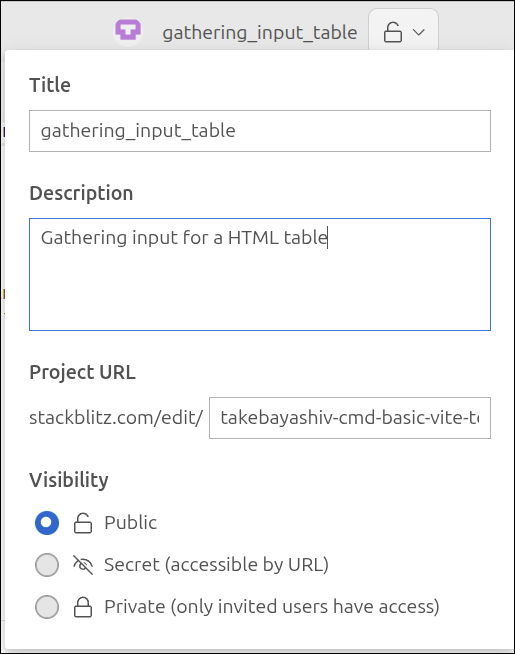
This is the same template that we used to start nearly all of our lessons, except for the Building an Insertion Sort Demo.
Getting started if using Vite
If you are using Vite, then run the following commands in a terminal:
$ cd ~/Documents
$ npx degit takebayashiv-cmd/basic-vite-template gathering_input_table
$ cd gathering_input_table
$ npm install
$ npm run dev
On line 2, we are starting with the Vite template that we used for most of our lessons, except the lesson on Building the Insertion Sort Demo.
Deciding on the type of data to use
Let’s start with deciding on the type of data we want to use for this project. For the purpose of this lesson, let’s assume that we want our data to be about cars (automobiles). To keep things simple, the car’s properties that we want to keep track of are make, model and price. For a real world example, we would want to store many other properties. But, for this lesson those three properties are enough to have a useful example.
Once we have made this decision, this will drive all the rest of the things we need to do for this project. So, we begin by creating a module called cars.mjs that will define the Car class that we will use to hold the properties of a Car object.
Creating the cars.mjs module
If you are using Stackblitz, hover over the FILES are in the PROJECT section and click on the New File icon. Name the new file cars.mjs. If you are using Vite, then open up Visual Studio Code to the folder, ~/Documents/gathering_input_table. Open up the Explorer view on the left side, and right-click in the area where the files index.html and index.js are located. Select the New File option and name the file cars.mjs.
Here is our first version of cars.mjs:
export class Car {
  constructor(make, model, price) {
    this.make = make;
    this.model = model;
    this.price = price;
  }

  toString() {
    return this.make + "," + this.model + "," + this.price;
  }
}
Lines 2-6 define the constructor for this class. Lines 3-5 simply assign the parameters to class variables of the same name, respectively. Lines 8-10 define the toString() method. This actually overrides the default toString() method for all JavaScript objects. By replacing the default toString() method, printing a Car object to the console will use your toString() method to show your string representation of a Car object. This can be useful for testing any class you define because you can always display strings to the console.
To test this new module, we replace index.mjs with the following contents:
import { Car } from "./cars.mjs";

if (document.readyState === "loading") {
  document.addEventListener('DOMContentLoaded', init);
} else {
  init();
}

function init() {
  console.log('init called');
  const car = new Car("Toyota", "Corolla", 28465.99);
  console.log(car);
  console.log(car.toString());
}
The new lines are 1 and 11-13. Line 1 just imports the Car class from the cars.mjs module. Line 11 creates a new Car object called car. Line 12 prints car to the Console, and line 13 prints the string representation of car to the Console. The following screen shot shows the result of running our application.
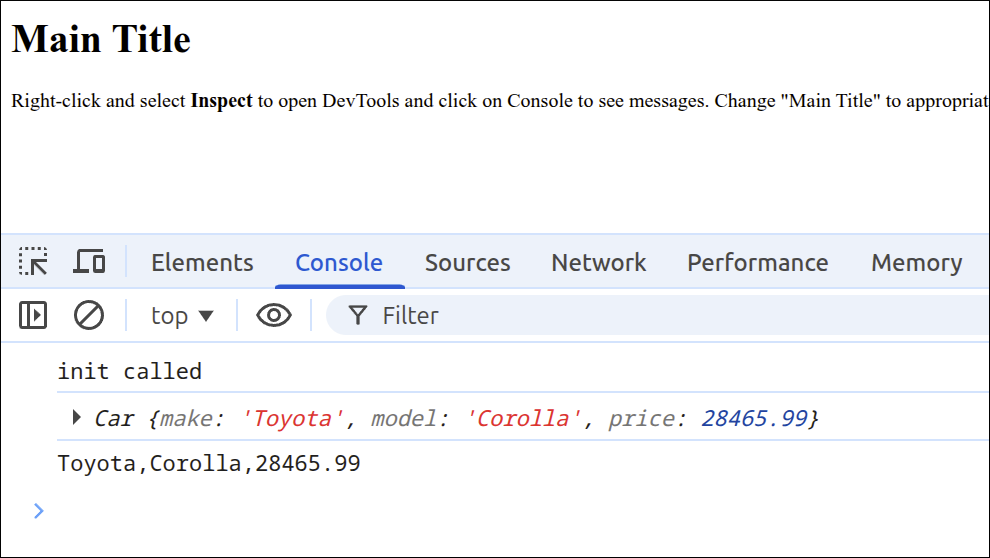
In the Console, you can see the object representation of car, followed by the string representation of car.
So, we know that the cars.mjs module is working at this point.
Adding HTML markup to index.html
Let’s index.html. We should change the <h1> element’s contents to something like "Cars table". More importantly, we need to add in <input> elements, a <button> element, and a <table> element to index.html. Here is our new version of index.html:
<!DOCTYPE html>
<html lang="en">
  <head>
    <meta charset="UTF-8" />
    <script type="module" src="index.mjs"></script>
    <title>Cars</title>
  </head>
  <body>
    Enter car info: <br />
    Make:
    <input type="text" id="make_box"><br />
    Model:
    <input type="text" id="model_box"><br />
    Price:
    <input type="text" id="price_box"><br />
    <br />
    <button id="ok_button">Ok</button>
    <h1>Cars table</h1>
    <table border="1">
      <thead>
        <tr>
          <th>Make</th>
          <th>Model</th>
          <th>Price</th>
        </tr>
      </thead>
      <tbody id="cars_tbody"></tbody>
    </table>
  </body>
</html>
The main new lines are 6 and 9-28. Line 6 just changes the <title> element’s contents to "Cars". Lines 9-28 put in the HTML markup needed to allow input and to have a table to store that input in eventually. Although this front end interface may change, we at least having our first prototype, that will allow us to continue developing the project. Line 9 serves as a prompt that lets the user know she/he should enter the car’s info. Lines 10 and 11 create the prompt and <input> text box for reading in the make of the car. Lines 12 and 13 create the prompt and <input> text box for reading in the model of the car. Lines 14 and 15 create the prompt and <input> text box for reading in the price of the car. Line 16 puts a blank line after the last <input> box and the Ok button. Line 17 creates the Ok button.
Line 18 changes the <h1> element’s contents to "Cars table". Lines 19-28 create a HTML <table> element. The border="1" attribute will use a 1 pixel border to outline the cells of the table. Lines 20-26 create the <thead> (table head) element. If you had a very long table and wanted to print it out, having a <thead> element makes it so that the heading columns will be printed at the top of each page that the printing continues on. Lines 21 and 25 define the <tr>, table row, element that will enclose the <th>, table heading elements. Lines 22-24 creates three <th> elements. This will make it so that the table uses three columns, one for each <th> element. By default, <th> element contents will use a bold font.
Line 27 defines the <tbody>, table body, element. This is where the rows of table data will be placed. The <tbody> element has an id="cars_tbody" attribute because we need to be able to get a reference to this <tbody>. That reference will be needed when we take the elements from our data array and write the contents to table rows inside <tbody>
Here is a screen shot showing the front end of our project at this point.
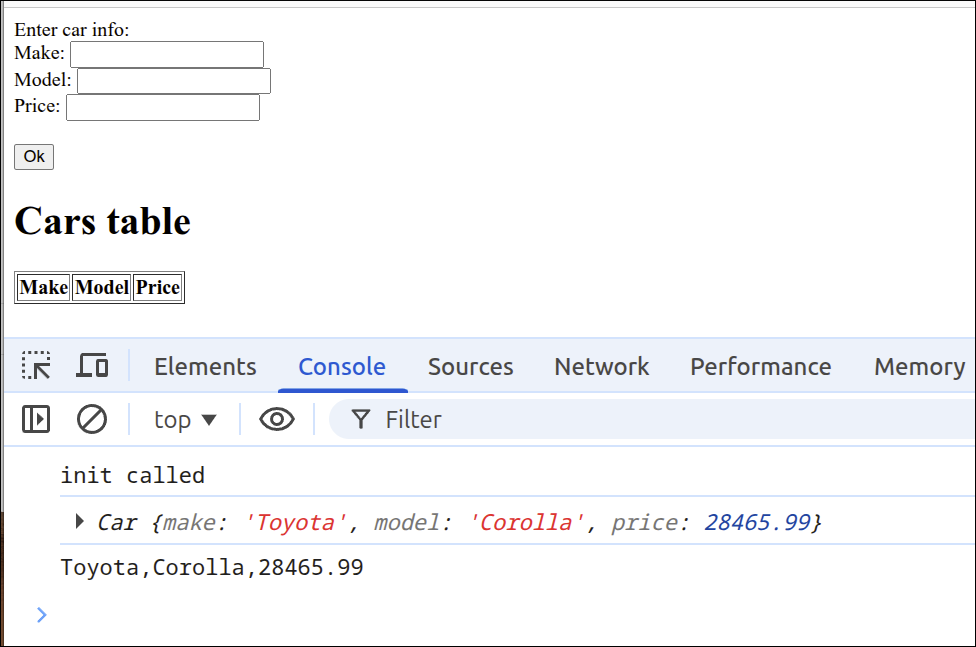
Note that having the three <input> boxes and the Ok button on the top as shown is not the cleanest way to lay this application out. But, this is a prototype and that is a very simple way to have enough of a user interface to start developing the rest of the JavaScript code.
Using a factory function inside index.mjs
Now that we have our front end prototype, let’s work on modifying our main JavaScript file, index.mjs. We will start by adding a factory function that can avoid global variables and define and return the APIA functions for interacting with the user.
import { Car } from "./cars.mjs";

if (document.readyState === "loading") {
  document.addEventListener('DOMContentLoaded', init);
} else {
  init();
}

function createApp() {
  // private values here
  const self = {
    handleOk: handleOk
  };

  // =========== API for interacting with user =========
  function handleOk() {
    console.log('handleOk called');
  }
  // =========== end of API for interacting with user ==

  // =========== helper functions =============

  // =========== end of helper functions ======

  return self;
}

function init() {
  console.log('init called');
  const myApp = createApp();
  const ok_button = document.getElementById("ok_button");
  ok_button.addEventListener("click", myApp.handleOk);
  const car = new Car("Toyota", "Corolla", 28465.99);
  console.log(car);
  console.log(car.toString());
}
The new lines are 9-26 and 30-32. Lines 9-26 define the createApp() factory function. Line 10 is just a comment reminding us that we will define the values private to the factory function here. Lines 11-13 define the self object, which is the object that will be returned to the calling program as the API functions. The definition of self will change as we add more API functions. Lines 15 and 19 show the start and end of the API function area. Right now, lines 16-18 define the handleOk() function that will be called when the user clicks on the Ok button. All that is done now is that it sends a message to the Console saying that this function has been called. Lines 21 and 23 show the start and end of where we will define the helper functions for our factory function. The helper functions will be used by the API functions to get their job done. Line 25 returns the self object, so that the calling program will have access to the API functions.
Line 30 calls the createApp() factory function to gain access to the API function. Line 31 gets a reference to the Ok button and stores this as ok_button. Line 32 makes it so that when the user hits the Ok button, the myApp.handleOk() function will be called.
The following screen shot has the Console showing that message 'handleOk called', that was printed when the user hit the Ok button.
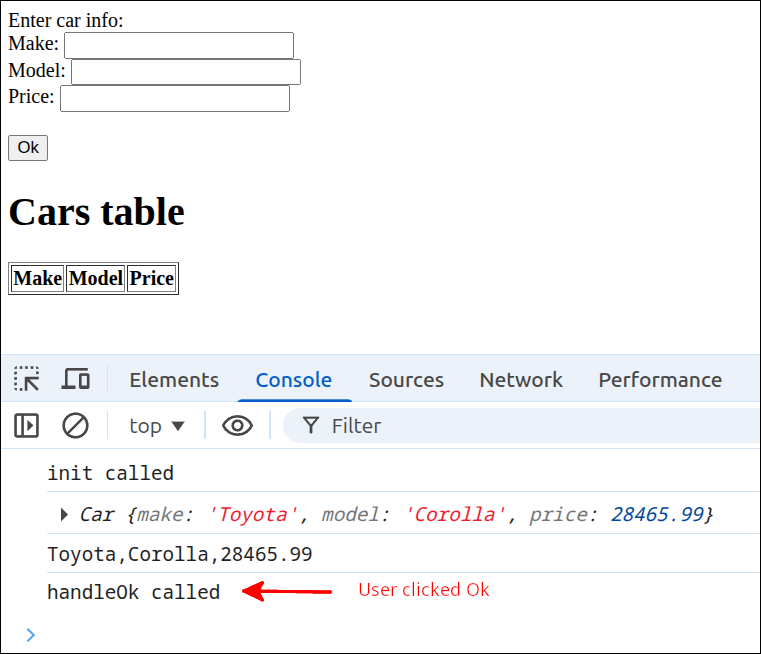
Now that we know that handleOk() is being called when we hit the Ok button, we can start adding to this function and to the private variables for our factory function to take the user input and store the data in an array of type Car. Here is the new version of index.mjs:
import { Car } from "./cars.mjs";

if (document.readyState === "loading") {
  document.addEventListener('DOMContentLoaded', init);
} else {
  init();
}

function createApp() {
  // private values here
  const self = {
    handleOk: handleOk
  };
  let car_data = [];
  const make_box = document.getElementById("make_box");
  const model_box = document.getElementById("model_box");
  const price_box = document.getElementById("price_box");

  // =========== API for interacting with user =========
  function handleOk() {
    const make = make_box.value.trim();
    const model = model_box.value.trim();
    const price = Number(price_box.value.trim());
    const car = new Car(make, model, price);
    car_data.push(car);
    console.log('car_data:', car_data);
  }
  // =========== end of API for interacting with user ==

  // =========== helper functions =============

  // =========== end of helper functions ======

  return self;
}

function init() {
  console.log('init called');
  const myApp = createApp();
  const ok_button = document.getElementById("ok_button");
  ok_button.addEventListener("click", myApp.handleOk);
  const car = new Car("Toyota", "Corolla", 28465.99);
  console.log(car);
  console.log(car.toString());
}
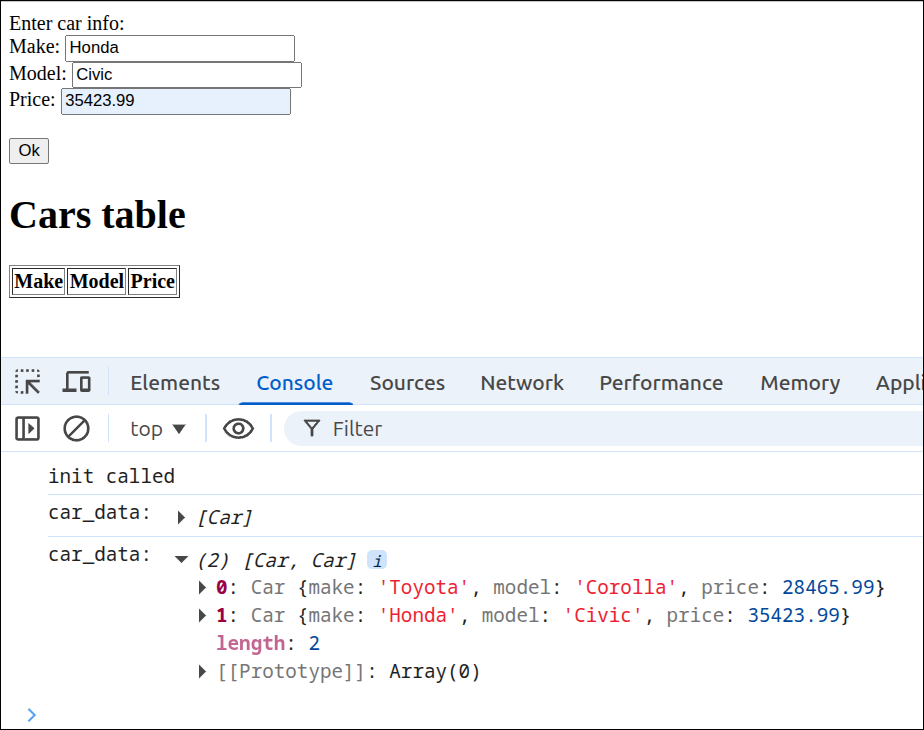
The new lines are 14-17 and 21-26. Line 14 adds a new private variable, car_data, that is the array we are going to store the Car data in. Lines 15-17 get references to the three <input> text boxes, make_box, model_box and price_box, respectively.
Lines 21-26 are used to gather the user input, construct a Car object from that input and store that Car object inside of car_data. Lines 21-23 obtain the values entered into the input boxes. Note that all of the input has leading and trailing whitespace removed with the trim() function. In addition, on line 23 the input is converted into a number using the Number() function before storing it as price. Line 24 calls the constructor for the Car class and passes it the values obtained from the input boxes. Line 25 places that Car object at the end of the car_data array using push(). Line 26 prints car_data to the Console.
The following screen shot shows the Console with the array expanded after two Car objects have been input and created.
Creating a helper function to put Car data into the HTML table
Now that we know that we can read the user input and add Car objects to our data storage array, let’s work on populating the HTML table. To do this, let’s add a helper function to our factory function. Here is the next version of index.mjs:
import { Car } from "./cars.mjs";

if (document.readyState === "loading") {
  document.addEventListener('DOMContentLoaded', init);
} else {
  init();
}

function createApp() {
  // private values here
  const self = {
    handleOk: handleOk
  };
  let car_data = [];
  const make_box = document.getElementById("make_box");
  const model_box = document.getElementById("model_box");
  const price_box = document.getElementById("price_box");
  const cars_tbody = document.getElementById("cars_tbody");

  // =========== API for interacting with user =========
  function handleOk() {
    const make = make_box.value.trim();
    const model = model_box.value.trim();
    const price = Number(price_box.value.trim());
    const car = new Car(make, model, price);
    car_data.push(car);
    console.log('car_data:', car_data);
    updateTable();
  }
  // =========== end of API for interacting with user ==

  // =========== helper functions =============
  function updateTable() {
    for (let i = 0; i < car_data.length; i++) {
      const car = car_data[i];
      const tr = document.createElement('tr');
      let td = document.createElement('td');
      const make = document.createTextNode(car.make);
      td.appendChild(make);
      tr.appendChild(td);
      td = document.createElement('td');
      const model = document.createTextNode(car.model);
      td.appendChild(model);
      tr.appendChild(td);
      td = document.createElement('td');
      const price = document.createTextNode(car.price);
      td.appendChild(price);
      tr.appendChild(td);
      cars_tbody.appendChild(tr);
    }
  }
  // =========== end of helper functions ======

  return self;
}

function init() {
  console.log('init called');
  const myApp = createApp();
  const ok_button = document.getElementById("ok_button");
  ok_button.addEventListener("click", myApp.handleOk);
  const car = new Car("Toyota", "Corolla", 28465.99);
  console.log(car);
  console.log(car.toString());
}
The new lines are 18, 28 and 33-51. Line 18 gets a reference to the <tbody id="cars_tbody"> element and stores this as cars_tbody. This will be needed when we add rows of data into that element. Line 28 calls the helper function updateCarTable(). The updateCarTable() helper function is defined on lines 33-51.
Lines 33-51 define the updateTable() helper function. Lines 34-50 define a for loop that iterates over all the elements in car_data. Line 35 is just a convenience instruction that allow us to use car instead of car_data[i]. This makes the instructions that follow shorter. Line 36 create a <tr> element using document.createElement(). Line 37 creates a <td> element using document.createElement(). Line 38 gets the make property of the car object and converts this to a TextNode. We need a TextNode to be used as the contents of the <td> element. Line 39 places that TextNode inside the <td> element, and line 40 places the <td> element inside the <tr> element. Line 41 creates a new <td> element. Lines 42-44 do the same things as lines 38-40, except for the car’s model property. Lines 46-48 do the same things as lines 42-44, except for the car’s price property. Finally line 49 appends the <tr> to cars_tbody, the <tbody> element.
Here is a screen shot showing the results of adding in two cars: Toyota Corolla 28465.99, Honda Civic 35423.99.
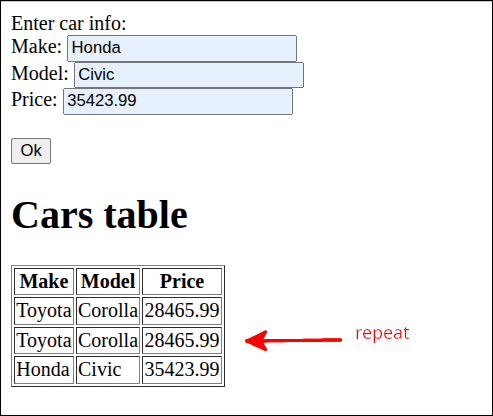
As you can see, there is a repeat row of the first car entered. This happens because we are appending to the <tbody> element of the <table> each time we hit the Ok button. So, any table rows that were placed there previously will still be inside the <tbody> element. So, what we need to do is create another helper function to clear <tbody> each time we are going to call updateTable().
Creating a helper function that clears the <tbody> element
What we need is a helper function that will use a while loop to remove all the children from <tbody>. Here is the next version of index.mjs that adds in that helper function and uses it from inside the updateTable() helper function:
import { Car } from "./cars.mjs";

if (document.readyState === "loading") {
  document.addEventListener('DOMContentLoaded', init);
} else {
  init();
}

function createApp() {
  // private values here
  const self = {
    handleOk: handleOk
  };
  let car_data = [];
  const make_box = document.getElementById("make_box");
  const model_box = document.getElementById("model_box");
  const price_box = document.getElementById("price_box");
  const cars_tbody = document.getElementById("cars_tbody");

  // =========== API for interacting with user =========
  function handleOk() {
    const make = make_box.value.trim();
    const model = model_box.value.trim();
    const price = Number(price_box.value.trim());
    const car = new Car(make, model, price);
    car_data.push(car);
    console.log('car_data:', car_data);
    updateTable();
  }
  // =========== end of API for interacting with user ==

  // =========== helper functions =============
  function updateTable() {
    clear_tbody();
    for (let i = 0; i < car_data.length; i++) {
      const car = car_data[i];
      const tr = document.createElement('tr');
      let td = document.createElement('td');
      const make = document.createTextNode(car.make);
      td.appendChild(make);
      tr.appendChild(td);
      td = document.createElement('td');
      const model = document.createTextNode(car.model);
      td.appendChild(model);
      tr.appendChild(td);
      td = document.createElement('td');
      const price = document.createTextNode(car.price);
      td.appendChild(price);
      tr.appendChild(td);
      cars_tbody.appendChild(tr);
    }
  }

  function clear_tbody() {
    while (cars_tbody.childNodes.length > 0) {
      cars_tbody.removeChild(cars_tbody.childNodes[0]);
    }
  }
  // =========== end of helper functions ======

  return self;
}

function init() {
  console.log('init called');
  const myApp = createApp();
  const ok_button = document.getElementById("ok_button");
  ok_button.addEventListener("click", myApp.handleOk);
  const car = new Car("Toyota", "Corolla", 28465.99);
  console.log(car);
  console.log(car.toString());
}
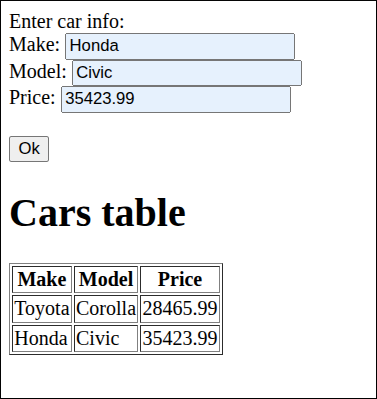
The new lines are 34 and 54-58. Lines 54-58 define the clear_tbody() helper function. Lines 55-57 define a while loop that checks to see if there are any child nodes inside cars_tbody. As long as there is at least one child node, line 56 will remove the first child node. This while loop continues until cars_tbody no longer has any children. Line 34 just calls the clear_tbody() helper function each time the updateTable() helper function is called.
The following screen shot shows that the problem with repeated rows has been fixed:
Creating a load test data feature
Adding the ability to load test data into the storage array and subsequently into the HTML table is something that is a convenience, rather than an important feature. But, since we are not keeping the data stored in some persistent fashion, the storage array and table are cleared every time we reload the page. So, to not have to spend time to enter in the car data one by one each time you make a change and/or reload the page for some reason, we will add this feature in. There will be better ways to do this that we will go into in future lessons. But, for now we can handle this in a relatively simple way.
Adding a Load Test Data button
We can start off by adding the HTML markup for another button that will be labelled Load Test Data. This involves just a small change to index.html:
<!DOCTYPE html>
<html lang="en">
  <head>
    <meta charset="UTF-8" />
    <script type="module" src="index.mjs"></script>
    <title>Cars</title>
  </head>
  <body>
    Enter car info: <br />
    Make:
    <input type="text" id="make_box"><br />
    Model:
    <input type="text" id="model_box"><br />
    Price:
    <input type="text" id="price_box"><br />
    <br />
    <button id="ok_button">Ok</button>
    <br />
    <button id="load_data_button">Load Test Data</button>
    <h1>Cars table</h1>
    <table border="1">
      <thead>
        <tr>
          <th>Make</th>
          <th>Model</th>
          <th>Price</th>
        </tr>
      </thead>
      <tbody id="cars_tbody"></tbody>
    </table>
  </body>
</html>
The new lines are 18 and 19. Line 18 adds a break element so that the button created on line 19 will be on the line below the Ok button. Line 19 just adds a <button> element with an id="load_data_button" attribute. We want to create a handler function for this called handleLoad(). Here is the updated version of index.mjs:
import { Car } from "./cars.mjs";

if (document.readyState === "loading") {
  document.addEventListener('DOMContentLoaded', init);
} else {
  init();
}

function createApp() {
  // private values here
  const self = {
    handleOk: handleOk,
    handleLoad: handleLoad
  };
  let car_data = [];
  const make_box = document.getElementById("make_box");
  const model_box = document.getElementById("model_box");
  const price_box = document.getElementById("price_box");
  const cars_tbody = document.getElementById("cars_tbody");

  // =========== API for interacting with user =========
  function handleOk() {
    const make = make_box.value.trim();
    const model = model_box.value.trim();
    const price = Number(price_box.value.trim());
    const car = new Car(make, model, price);
    car_data.push(car);
    console.log('car_data:', car_data);
    updateTable();
  }

  function handleLoad() {
    const c1 = new Car("Toyota", "Corolla", 28465.99);
    const c2 = new Car("Honda", "Civic", 35423.99);
    const c3 = new Car("Nissan", "Rogue", 34198.99);
    const c4 = new Car("Lexus", "UX 250h", 43728.99);
    car_data = [];
    car_data.push(c1);
    car_data.push(c2);
    car_data.push(c3);
    car_data.push(c4);
    updateTable();
  }
  // =========== end of API for interacting with user ==

  // =========== helper functions =============
  function updateTable() {
    clear_tbody();
    for (let i = 0; i < car_data.length; i++) {
      const car = car_data[i];
      const tr = document.createElement('tr');
      let td = document.createElement('td');
      const make = document.createTextNode(car.make);
      td.appendChild(make);
      tr.appendChild(td);
      td = document.createElement('td');
      const model = document.createTextNode(car.model);
      td.appendChild(model);
      tr.appendChild(td);
      td = document.createElement('td');
      const price = document.createTextNode(car.price);
      td.appendChild(price);
      tr.appendChild(td);
      cars_tbody.appendChild(tr);
    }
  }

  function clear_tbody() {
    while (cars_tbody.childNodes.length > 0) {
      cars_tbody.removeChild(cars_tbody.childNodes[0]);
    }
  }
  // =========== end of helper functions ======

  return self;
}

function init() {
  console.log('init called');
  const myApp = createApp();
  const ok_button = document.getElementById("ok_button");
  ok_button.addEventListener("click", myApp.handleOk);
  const load_data_button = document.getElementById("load_data_button");
  load_data_button.addEventListener("click", myApp.handleLoad);
}
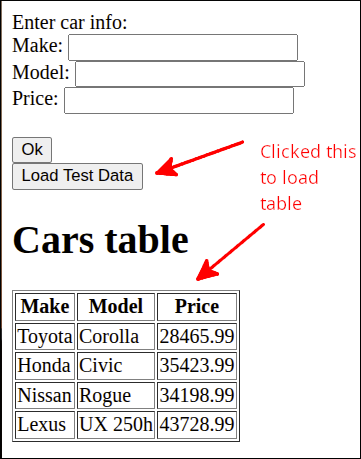
The new lines are 12-13, 32-43 and 83-84. Lines 12-13 change our definition of the self object. This is because we now have an additional API function, handleLoad(). So, line 12 has been modified to add a comma (,) at the end of the line. Previously, we had only one API function. So, there was no need for a comma at the end of that line. But, now that we are adding another function, we need a comma to separate the key:value pairs. Line 13 adds in the key:value pair for the handleLoad function.
Lines 32-43 define the handleLoad() handler function. Lines 33-36 construct four Car objects. Line 37 empties the car_data array. Lines 38-41 use the push() method to append the Car objects into car_data. Line 42 calls the updateTable() helper function to update the HTML table.
Line 83 gets a reference to the <button> with an id="load_data_button" attribute, and stores this reference as load_data_button. Line 84 makes it so that the myApp.handleLoad() function is called when load_data_button is clicked. Three lines that were used to test the Car class were removed from the end of the init() function.
Here is a screen shot showing the application right after the Load Test Data button has been clicked:
Using a HTML <dialog> element to enclose <input> boxes and <button>
As we mentioned earlier, the user interface for this application looks cluttered because of all the <input> elements above the cars table. One way to address this is to make use of the HTML <dialog> element. We did look at the <dialog> element in this lesson Graphics with Konva: Using HTML <dialog> elements. So, you may want to review that lesson.
We can start by modifying the HTML markup in index.html:
<!DOCTYPE html>
<html lang="en">
  <head>
    <meta charset="UTF-8" />
    <script type="module" src="index.mjs"></script>
    <title>Cars</title>
  </head>
  <body>
    <dialog id="add_dlg">
      Enter car info: <br />
      Make:
      <input type="text" id="make_box"><br />
      Model:
      <input type="text" id="model_box"><br />
      Price:
      <input type="text" id="price_box"><br />
      <br />
      <button id="ok_button">Ok</button>
    </dialog>
    <br />
    <button id="add_button">Add car</button>
    <button id="load_data_button">Load Test Data</button>
    <h1>Cars table</h1>
    <table border="1">
      <thead>
        <tr>
          <th>Make</th>
          <th>Model</th>
          <th>Price</th>
        </tr>
      </thead>
      <tbody id="cars_tbody"></tbody>
    </table>
  </body>
</html>
The new lines are 9, 19 and 21. Lines 9 and 19 are the start and end tags for a <dialog> element. Lines 10-18 are not new lines, but they are the old lines for the <input> and Ok button that have been moved inside the <dialog> element. Line 9 gives the <dialog> element an id="add_dlg" attribute. This id will be used to obtain a reference that <dialog> element.
Line 21 adds a <button> element that will be labelled Add car. If you just look at a screen shot of the application now, it looks like this:
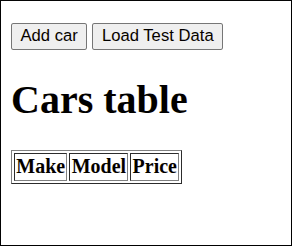
As you can see, the <input> text boxes and Ok button are not visible anymore, as they are placed inside a <dialog> element. Until you show that <dialog> using the showModal() method, the <dialog> is hidden.
Adding code to use the new <dialog> element
There are several things that need to be added to the code to use the new <dialog> element.
-
A reference to the <dialog> must be obtained. If this is done as a private variable to the
createHandlers()factory function, then this reference will be available to any function inside thecreateHandlers()factory function. -
A helper function must be assigned to the "click" event of the Add car button. This can be done in the private variable section of the
createHandlers()factory function.
A good thing to recall, is that the showModal() method is used to display a <dialog> element, and the close() method is used to close a <dialog> element. Also, by default, htting the Esc key will close a <dialog> as well if that <dialog> was opened using the showModal() method.
Here is the updated version of index.mjs that does the above things:
import { Car } from "./cars.mjs";

if (document.readyState === "loading") {
  document.addEventListener('DOMContentLoaded', init);
} else {
  init();
}

function createApp() {
  // private values here
  const self = {
    handleOk: handleOk,
    handleLoad: handleLoad
  };
  let car_data = [];
  const make_box = document.getElementById("make_box");
  const model_box = document.getElementById("model_box");
  const price_box = document.getElementById("price_box");
  const cars_tbody = document.getElementById("cars_tbody");
  const add_dlg = document.getElementById("add_dlg");
  const add_button = document.getElementById("add_button");
  add_button.addEventListener("click", showAddDlg);

  // =========== API for interacting with user =========
  function handleOk() {
    const make = make_box.value.trim();
    const model = model_box.value.trim();
    const price = Number(price_box.value.trim());
    const car = new Car(make, model, price);
    car_data.push(car);
    console.log('car_data:', car_data);
    updateTable();
    make_box.value = "";
    model_box.value = "";
    price_box.value = "";
    add_dlg.close();
  }

  function handleLoad() {
    const c1 = new Car("Toyota", "Corolla", 28465.99);
    const c2 = new Car("Honda", "Civic", 35423.99);
    const c3 = new Car("Nissan", "Rogue", 34198.99);
    const c4 = new Car("Lexus", "UX 250h", 43728.99);
    car_data = [];
    car_data.push(c1);
    car_data.push(c2);
    car_data.push(c3);
    car_data.push(c4);
    updateTable();
  }
  // =========== end of API for interacting with user ==

  // =========== helper functions =============
  function updateTable() {
    clear_tbody();
    for (let i = 0; i < car_data.length; i++) {
      const car = car_data[i];
      const tr = document.createElement('tr');
      let td = document.createElement('td');
      const make = document.createTextNode(car.make);
      td.appendChild(make);
      tr.appendChild(td);
      td = document.createElement('td');
      const model = document.createTextNode(car.model);
      td.appendChild(model);
      tr.appendChild(td);
      td = document.createElement('td');
      const price = document.createTextNode(car.price);
      td.appendChild(price);
      tr.appendChild(td);
      cars_tbody.appendChild(tr);
    }
  }

  function showAddDlg() {
    add_dlg.showModal();
  }

  function clear_tbody() {
    while (cars_tbody.childNodes.length > 0) {
      cars_tbody.removeChild(cars_tbody.childNodes[0]);
    }
  }
  // =========== end of helper functions ======

  return self;
}

function init() {
  console.log('init called');
  const myApp = createApp();
  const ok_button = document.getElementById("ok_button");
  ok_button.addEventListener("click", myApp.handleOk);
  const load_data_button = document.getElementById("load_data_button");
  load_data_button.addEventListener("click", myApp.handleLoad);
}
The new lines are 20-22, 33-36 and 75-77. Line 20 gets a reference to the <dialog id="add_dlg"> element. This is needed to open and close that dialog box. Line 21 gets a reference to the <button id="add_button"> element. On line 22 the showAddDlg() function is designated as the handler to be called when the user clicks on that button from line 21.
Lines 33-36 are added to make the handleOk() handler function work with the add dialog box. Lines 33-35 clear all the <input> text boxes. This makes it so that when the user clicks on the Add car button again, those boxes will be empty. Line 36 closes the add dialog box, as that should no longer be visible once the Car has been added.
Lines 75-77 define the showAddDlg() helper function. All this does is call the showModal() method to show the add dialog box.
The following animated gif shows the new dialog box in action.
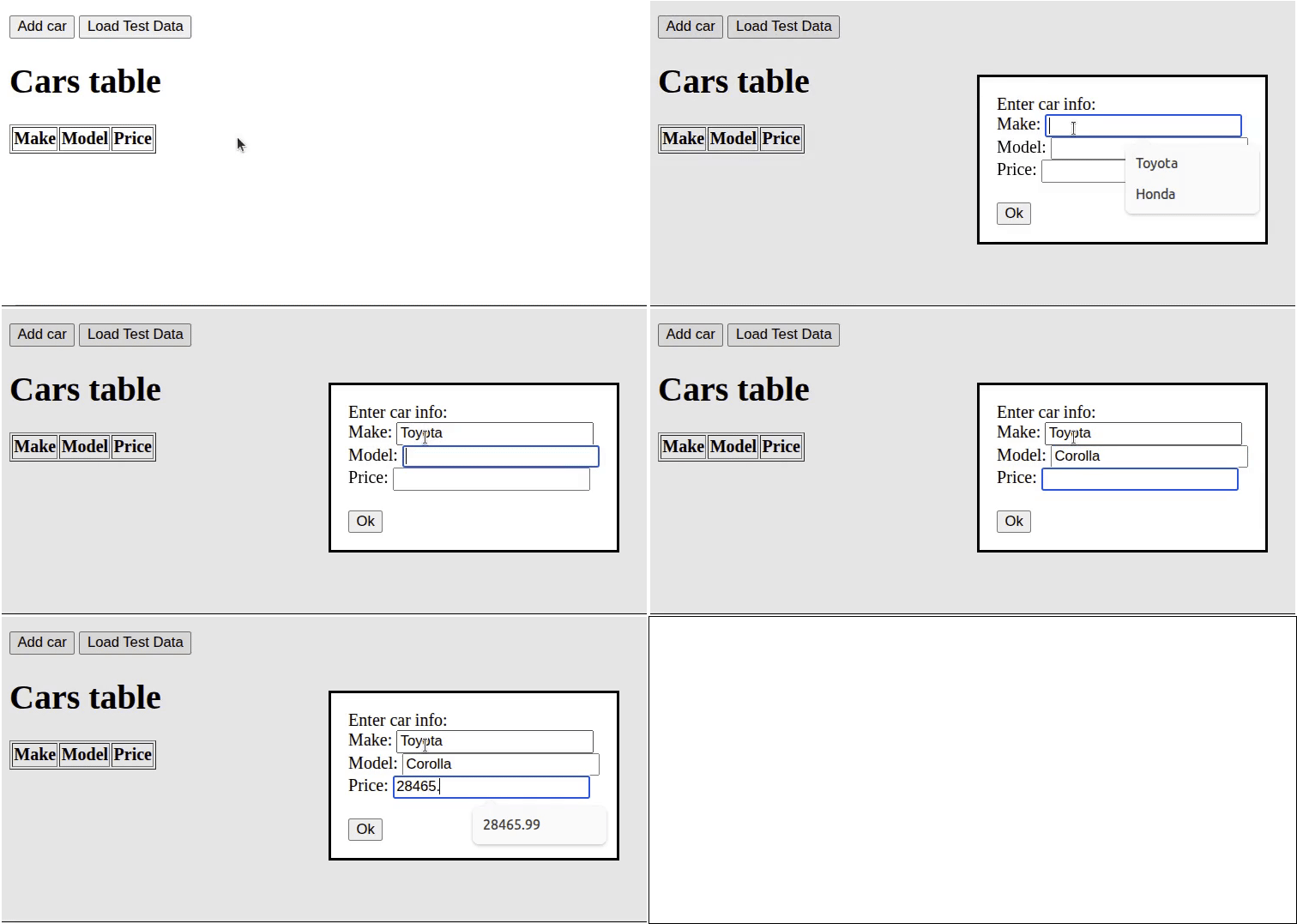
Click on Reload gif to replay animation.
As you can see, the user interface looks cleaner now, as the <input> elements only show up after the user clicks on the Add car button.
Adding a handler function to sort the table by column
The idea here is to make it so that the table data rows can be sorted by clicking on the column header. So for example, if the user clicks on the Make <th> element, then the table is sorted by the cars' make. Clicking on that same column header again will toggle the sort from ascending to descending or vice versa. This is actually a fairly involved process, so we will break it up into several smaller steps.
Modifying the code so clicking on <th> elements calls a handling function
The first thing we can do, is modify the <th> elements so that they have an id attribute, and so that there is an event handler attached to clicking on that <th> element. This starts with modifying the HTML markup in index.html. This involves just assigning an id to each <th> element.
<!DOCTYPE html>
<html lang="en">
  <head>
    <meta charset="UTF-8" />
    <script type="module" src="index.mjs"></script>
    <title>Cars</title>
  </head>
  <body>
    <dialog id="add_dlg">
      Enter car info: <br />
      Make:
      <input type="text" id="make_box"><br />
      Model:
      <input type="text" id="model_box"><br />
      Price:
      <input type="text" id="price_box"><br />
      <br />
      <button id="ok_button">Ok</button>
    </dialog>
    <br />
    <button id="add_button">Add car</button>
    <button id="load_data_button">Load Test Data</button>
    <h1>Cars table</h1>
    <table border="1">
      <thead>
        <tr>
          <th id="make_heading">Make</th>
          <th id="model_heading">Model</th>
          <th id="price_heading">Price</th>
        </tr>
      </thead>
      <tbody id="cars_tbody"></tbody>
    </table>
  </body>
</html>
The new lines are 27-29. These lines assign unique id values to each <th> element. When we assign an event handler, the actual event can be captured and will have information on which of the <th> elements was hit. The assigning of the event handler can be done inside of index.mjs:
import { Car } from "./cars.mjs";

if (document.readyState === "loading") {
  document.addEventListener('DOMContentLoaded', init);
} else {
  init();
}

function createApp() {
  // private values here
  const self = {
    handleOk: handleOk,
    handleSort: handleSort,
    handleLoad: handleLoad
  };
  let car_data = [];
  const make_box = document.getElementById("make_box");
  const model_box = document.getElementById("model_box");
  const price_box = document.getElementById("price_box");
  const cars_tbody = document.getElementById("cars_tbody");
  const add_dlg = document.getElementById("add_dlg");
  const add_button = document.getElementById("add_button");
  add_button.addEventListener("click", showAddDlg);

  // =========== API for interacting with user =========
  function handleOk() {
    const make = make_box.value.trim();
    const model = model_box.value.trim();
    const price = Number(price_box.value.trim());
    const car = new Car(make, model, price);
    car_data.push(car);
    console.log('car_data:', car_data);
    updateTable();
    make_box.value = "";
    model_box.value = "";
    price_box.value = "";
    add_dlg.close();
  }

  function handleSort(event) {
    console.log(event.target.id);
  }

  function handleLoad() {
    const c1 = new Car("Toyota", "Corolla", 28465.99);
    const c2 = new Car("Honda", "Civic", 35423.99);
    const c3 = new Car("Nissan", "Rogue", 34198.99);
    const c4 = new Car("Lexus", "UX 250h", 43728.99);
    car_data = [];
    car_data.push(c1);
    car_data.push(c2);
    car_data.push(c3);
    car_data.push(c4);
    updateTable();
  }
  // =========== end of API for interacting with user ==

  // =========== helper functions =============
  function updateTable() {
    clear_tbody();
    for (let i = 0; i < car_data.length; i++) {
      const car = car_data[i];
      const tr = document.createElement('tr');
      let td = document.createElement('td');
      const make = document.createTextNode(car.make);
      td.appendChild(make);
      tr.appendChild(td);
      td = document.createElement('td');
      const model = document.createTextNode(car.model);
      td.appendChild(model);
      tr.appendChild(td);
      td = document.createElement('td');
      const price = document.createTextNode(car.price);
      td.appendChild(price);
      tr.appendChild(td);
      cars_tbody.appendChild(tr);
    }
  }

  function showAddDlg() {
    add_dlg.showModal();
  }

  function clear_tbody() {
    while (cars_tbody.childNodes.length > 0) {
      cars_tbody.removeChild(cars_tbody.childNodes[0]);
    }
  }
  // =========== end of helper functions ======

  return self;
}

function init() {
  console.log('init called');
  const myApp = createApp();
  const ok_button = document.getElementById("ok_button");
  ok_button.addEventListener("click", myApp.handleOk);
  const load_data_button = document.getElementById("load_data_button");
  load_data_button.addEventListener("click", myApp.handleLoad);
  const table_headers = document.getElementsByTagName('th');
  for (let header of table_headers) {
    header.addEventListener("click", () => {
      handlers.handleSort(event);
    });
  }
}
The new lines are 13, 40-42 and 101-106. Let’s discuss the changes to the init() function on lines 101-106. Line 101 gets an array of all of the elements that are <th> elements. Lines 102-106 define a for loop that iterates over those <th> elements. Lines 103-105 add an event handler that gets called when the <th> element is clicked upon. The handler called is handlers.handleSort(), and that function is passed the event as an argument.
Line 13 modifies the definition of the self object so that it will also pass the handleSort() function that starts on line 40.
Lines 40-42 define the handleSort() handler function. Line 41 prints the event’s target.id to the Console. If the target was printed, it would look like this:
<th id="make_heading">Make</th>
But, by printing target.id, all that would be printed for that same element would be make_heading. The following animated gif shows what happens when clicking on the three <th> elements, one at a time.
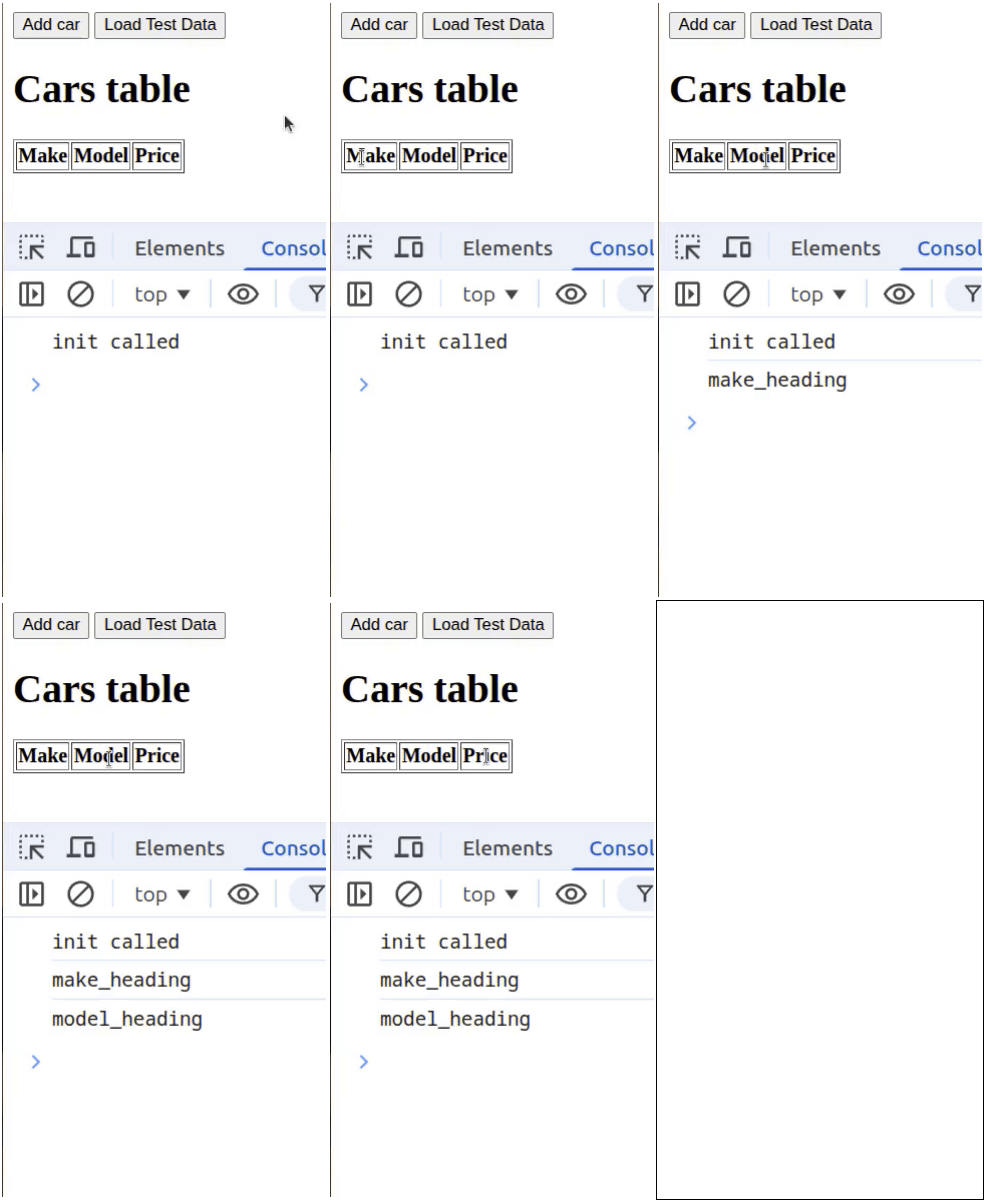
Click on Reload gif to replay animation.
Setting up for sorting the table
We want to make it so that clicking on the column heading for the table will cause the contents to get sorted by that column. In addition, we want to make it so that clicking on that same column again will sort by that column again, but in the opposite order. This means that we need to have a way to check the current sort status of a given column. One of the ways to do this, is to use the aria-sort attribute to keep track of the sort status. Here are the allowed values for the aria-sort status, "none", "ascending" and "descending".
Here is a modified version of index.html, that adds in the aria-sort attribute for our <th> elements:
<!DOCTYPE html>
<html lang="en">
  <head>
    <meta charset="UTF-8" />
    <script type="module" src="index.mjs"></script>
    <title>Cars</title>
  </head>
  <body>
    <dialog id="add_dlg">
      Enter car info: <br />
      Make:
      <input type="text" id="make_box"><br />
      Model:
      <input type="text" id="model_box"><br />
      Price:
      <input type="text" id="price_box"><br />
      <br />
      <button id="ok_button">Ok</button>
    </dialog>
    <br />
    <button id="add_button">Add car</button>
    <button id="load_data_button">Load Test Data</button>
    <h1>Cars table</h1>
    <table border="1">
      <thead>
        <tr>
          <th id="make_heading" aria-sort="none">Make</th>
          <th id="model_heading" aria-sort="none">Model</th>
          <th id="price_heading" aria-sort="none">Price</th>
        </tr>
      </thead>
      <tbody id="cars_tbody"></tbody>
    </table>
  </body>
</html>
The modified lines are 27-29. For each of those lines the aria-sort attribute has been added in. Since the table is not initially sorted by any of the columns, the values of that attribute is set to none.
Next, we can start making changes to the handleSort() handler in index.mjs:
import { Car } from "./cars.mjs";

if (document.readyState === "loading") {
  document.addEventListener('DOMContentLoaded', init);
} else {
  init();
}

function createApp() {
  // private values here
  const self = {
    handleOk: handleOk,
    handleSort: handleSort,
    handleLoad: handleLoad
  };
  let car_data = [];
  const make_box = document.getElementById("make_box");
  const model_box = document.getElementById("model_box");
  const price_box = document.getElementById("price_box");
  const cars_tbody = document.getElementById("cars_tbody");
  const add_dlg = document.getElementById("add_dlg");
  const add_button = document.getElementById("add_button");
  add_button.addEventListener("click", showAddDlg);

  // =========== API for interacting with user =========
  function handleOk() {
    const make = make_box.value.trim();
    const model = model_box.value.trim();
    const price = Number(price_box.value.trim());
    const car = new Car(make, model, price);
    car_data.push(car);
    console.log('car_data:', car_data);
    updateTable();
    make_box.value = "";
    model_box.value = "";
    price_box.value = "";
    add_dlg.close();
  }

  function handleSort(event) {
    const id = event.target.id;
    const property = id.split("_")[0];
    if (property === "make" || property === "model") {
      sortByString(property);
    } else if (property === "price") {
      sortByNumber(property);
    }
  }

  function handleLoad() {
    const c1 = new Car("Toyota", "Corolla", 28465.99);
    const c2 = new Car("Honda", "Civic", 35423.99);
    const c3 = new Car("Nissan", "Rogue", 34198.99);
    const c4 = new Car("Lexus", "UX 250h", 43728.99);
    car_data = [];
    car_data.push(c1);
    car_data.push(c2);
    car_data.push(c3);
    car_data.push(c4);
    updateTable();
  }
  // =========== end of API for interacting with user ==

  // =========== helper functions =============
  function updateTable() {
    clear_tbody();
    for (let i = 0; i < car_data.length; i++) {
      const car = car_data[i];
      const tr = document.createElement('tr');
      let td = document.createElement('td');
      const make = document.createTextNode(car.make);
      td.appendChild(make);
      tr.appendChild(td);
      td = document.createElement('td');
      const model = document.createTextNode(car.model);
      td.appendChild(model);
      tr.appendChild(td);
      td = document.createElement('td');
      const price = document.createTextNode(car.price);
      td.appendChild(price);
      tr.appendChild(td);
      cars_tbody.appendChild(tr);
    }
  }

  function showAddDlg() {
    add_dlg.showModal();
  }

  function sortByString(property) {
    const header = document.getElementById(property + "_heading");
    car_data.sort((a,b) => a[property].localeCompare(b[property]));
    header.setAttribute("aria-sort", "ascending");
    console.log(`sorting by ${property}`);
    for (let car of car_data) {
      console.log(car);
    }
  }

  function sortByNumber(property) {
    const header = document.getElementById(property + "_heading");
    car_data.sort((a,b) => a[property] - b[property]);
    header.setAttribute("aria-sort", "ascending");
    console.log(`sorting by ${property}`);
    for (let car of car_data) {
      console.log(car);
    }
  }

  function clear_tbody() {
    while (cars_tbody.childNodes.length > 0) {
      cars_tbody.removeChild(cars_tbody.childNodes[0]);
    }
  }
  // =========== end of helper functions ======

  return self;
}

function init() {
  console.log('init called');
  const myApp = createApp();
  const ok_button = document.getElementById("ok_button");
  ok_button.addEventListener("click", myApp.handleOk);
  const load_data_button = document.getElementById("load_data_button");
  load_data_button.addEventListener("click", myApp.handleLoad);
  const table_headers = document.getElementsByTagName('th');
  for (let header of table_headers) {
    header.addEventListener("click", () => {
      myApp.handleSort(event);
    });
  }
}
The new lines are 41-47, 90-98 and 100-108. Lines 41-47 are modifications to the handleSort() API function. Line 41 stores event.target.id as id. Line 42 splits id on a "_" and gets the first element of the resulting array, and stores this as property. So, if the value of id is "make_heading", property will be "make". Lines 43-47 define a selection statement that tests the value of property. If property is either "make" or "model", then line 44 will be executed to call the sortByString() helper function. On the other hand, if property is "price", then line 46 will be executed to call the sortByNumber() helper function.
Lines 90-98 define the sortByString() helper function. When you sort things, you need to sort strings differently from how you sort numbers. So, the sortByString() function is made to sort using a property that is a string. Line 91 gets a reference to the <th> element with and id of "make_heading" or "model_heading" depending on what the value of property is. Line 92 performs an ascending sort on the car_data array. The localeCompare() function correctly compares strings as opposed to using the < operator. So using < would result in all uppercase letters coming before lowercase letters, which is usually not what we want. So, if you ever need to sort by a property that is a string, make sure you use localeCompare(). Line 93 sets the aria-sort attribute to "ascending". That is just to test things out, as we will use a better method for setting this attribute in later changes to this function. Lines 95-97 are just debugging statements that will help us know if the sort is working properly.
Lines 100-108 define the sortByNumber() helper function. This is similar to the sortByString() function, except that the sort on line 102 is how you sort when the property is numeric.
After making these changes, you can run the application. Start by clicking on the Load Test Data button, and verify that the table is filled with 4 rows of data. Then, click on the Make heading, then the Model heading and then finally the Price heading. This is what the Console would look like:
index.mjs:105 init called
index.mjs:41 sorting by make
index.mjs:43 Car {make: 'Honda', model: 'Civic', price: 35423.99}
index.mjs:43 Car {make: 'Lexus', model: 'UX 250h', price: 43728.99}
index.mjs:43 Car {make: 'Nissan', model: 'Rogue', price: 34198.99}
index.mjs:43 Car {make: 'Toyota', model: 'Corolla', price: 28465.99}
index.mjs:41 sorting by model
index.mjs:43 Car {make: 'Honda', model: 'Civic', price: 35423.99}
index.mjs:43 Car {make: 'Toyota', model: 'Corolla', price: 28465.99}
index.mjs:43 Car {make: 'Nissan', model: 'Rogue', price: 34198.99}
index.mjs:43 Car {make: 'Lexus', model: 'UX 250h', price: 43728.99}
index.mjs:51 sorting by price
index.mjs:53 Car {make: 'Toyota', model: 'Corolla', price: 28465.99}
index.mjs:53 Car {make: 'Nissan', model: 'Rogue', price: 34198.99}
index.mjs:53 Car {make: 'Honda', model: 'Civic', price: 35423.99}
index.mjs:53 Car {make: 'Lexus', model: 'UX 250h', price: 43728.99}
As you can see the car_data array is being sorted correctly. Switch to the Elements tab, If you expand the <tr> containing the <th> elements you will see what is shown in the screen shot below:
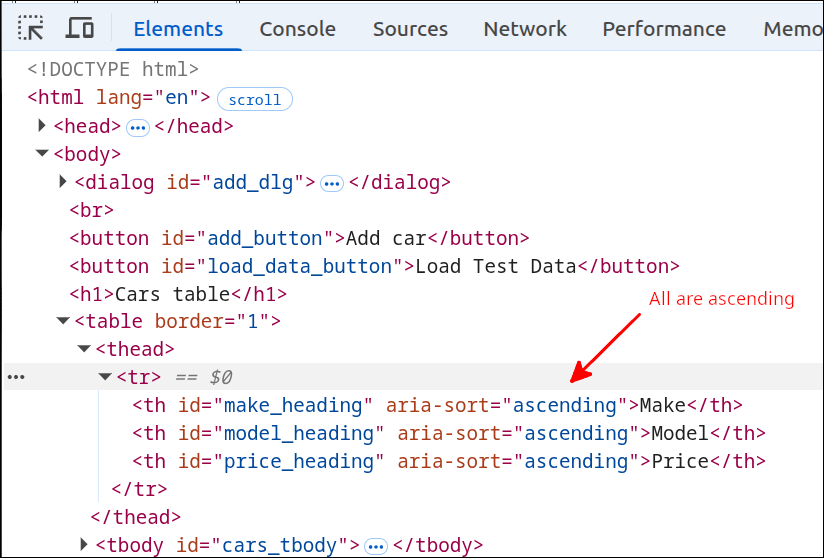
As you can see all the aria-sort attribute values are "ascending". This is not what we want, as car_data is only sorted by Price at this point. So, we should make the other <th> elements have aria-sort="none". We will address this next.
We want to make it so that if we click on a column heading the following takes place:
const header = document.getElementById(property + "_heading");
const sort_dir = header.getAttribute("aria-sort");
if (sort_dir === "none" || sort_dir === "descending") {
  // do ascending sort
  // header.setAttribute("aria-sort", "ascending")
  // set all other header aria-sort attributes to "none"
} else if (sort_dir === "ascending") {
  // do descending sort
  // set header's aria-sort attribute to "descending"
  // set all other header aria-sort attributes to "none"
}
So, let’s do this type of thing inside the sortByString() and sortByNumber() helper functions. Here is the updated version of index.mjs:
import { Car } from "./cars.mjs";

if (document.readyState === "loading") {
  document.addEventListener('DOMContentLoaded', init);
} else {
  init();
}

function createApp() {
  // private values here
  const self = {
    handleOk: handleOk,
    handleSort: handleSort,
    handleLoad: handleLoad
  };
  let car_data = [];
  const make_box = document.getElementById("make_box");
  const model_box = document.getElementById("model_box");
  const price_box = document.getElementById("price_box");
  const cars_tbody = document.getElementById("cars_tbody");
  const add_dlg = document.getElementById("add_dlg");
  const add_button = document.getElementById("add_button");
  add_button.addEventListener("click", showAddDlg);

  // =========== API for interacting with user =========
  function handleOk() {
    const make = make_box.value.trim();
    const model = model_box.value.trim();
    const price = Number(price_box.value.trim());
    const car = new Car(make, model, price);
    car_data.push(car);
    console.log('car_data:', car_data);
    updateTable();
    make_box.value = "";
    model_box.value = "";
    price_box.value = "";
    add_dlg.close();
  }

  function handleSort(event) {
    const id = event.target.id;
    const property = id.split("_")[0];
    if (property === "make" || property === "model") {
      sortByString(property);
    } else if (property === "price") {
      sortByNumber(property);
    }
  }

  function handleLoad() {
    const c1 = new Car("Toyota", "Corolla", 28465.99);
    const c2 = new Car("Honda", "Civic", 35423.99);
    const c3 = new Car("Nissan", "Rogue", 34198.99);
    const c4 = new Car("Lexus", "UX 250h", 43728.99);
    car_data = [];
    car_data.push(c1);
    car_data.push(c2);
    car_data.push(c3);
    car_data.push(c4);
    updateTable();
  }
  // =========== end of API for interacting with user ==

  // =========== helper functions =============
  function updateTable() {
    clear_tbody();
    for (let i = 0; i < car_data.length; i++) {
      const car = car_data[i];
      const tr = document.createElement('tr');
      let td = document.createElement('td');
      const make = document.createTextNode(car.make);
      td.appendChild(make);
      tr.appendChild(td);
      td = document.createElement('td');
      const model = document.createTextNode(car.model);
      td.appendChild(model);
      tr.appendChild(td);
      td = document.createElement('td');
      const price = document.createTextNode(car.price);
      td.appendChild(price);
      tr.appendChild(td);
      cars_tbody.appendChild(tr);
    }
  }

  function showAddDlg() {
    add_dlg.showModal();
  }

  function sortByString(property) {
    const header = document.getElementById(property + "_heading");
    const sort_dir = header.getAttribute("aria-sort");
    let actual_sort = "";
    if (sort_dir === "none" || sort_dir === "descending") {
      car_data.sort((a,b) => a[property].localeCompare(b[property]));
      header.setAttribute("aria-sort", "ascending");
      actual_sort = "ascending";
    } else if (sort_dir === "ascending") {
      car_data.sort((a,b) => b[property].localeCompare(a[property]));
      header.setAttribute("aria-sort", "descending");
      actual_sort = "descending";
    }
    resetHeadings(property);
    console.log(`sorting by ${property}, ${actual_sort}`);
    for (let car of car_data) {
      console.log(car);
    }
  }

  function sortByNumber(property) {
    const header = document.getElementById(property + "_heading");
    const sort_dir = header.getAttribute("aria-sort");
    let actual_sort = "";
    if (sort_dir === "none" || sort_dir === "descending") {
      car_data.sort((a,b) => a[property] - b[property]);
      header.setAttribute("aria-sort", "ascending");
      actual_sort = "ascending";
    } else if (sort_dir === "ascending") {
      car_data.sort((a,b) => b[property] - a[property]);
      header.setAttribute("aria-sort", "descending");
      actual_sort = "descending";
    }
    resetHeadings(property);
    console.log(`sorting by ${property}, ${actual_sort}`);
    for (let car of car_data) {
      console.log(car);
    }
  }

  function resetHeadings(property) {
    const id = property + "_heading";
    const headers = document.getElementsByTagName('th');
    for (let header of headers) {
      if (header.id !== id) {
        header.setAttribute("aria-sort", "none");
      }
    }
  }

  function clear_tbody() {
    while (cars_tbody.childNodes.length > 0) {
      cars_tbody.removeChild(cars_tbody.childNodes[0]);
    }
  }
  // =========== end of helper functions ======

  return self;
}

function init() {
  console.log('init called');
  const myApp = createApp();
  const ok_button = document.getElementById("ok_button");
  ok_button.addEventListener("click", myApp.handleOk);
  const load_data_button = document.getElementById("load_data_button");
  load_data_button.addEventListener("click", myApp.handleLoad);
  const table_headers = document.getElementsByTagName('th');
  for (let header of table_headers) {
    header.addEventListener("click", () => {
      myApp.handleSort(event);
    });
  }
}
The new lines are 92-104, 112-124 and 130-138. Lines 92-104 are the new and modified lines inside the sortByString() helper function. Line 92 gets the value of the aria-sort attribute and stores this as sort_dir. Line 93 creates a variable called actual_sort that is there mainly for debugging purposes. Lines 94-102 define a selection statement that checks the value of sort_dir. If sort_dir is either "none" or "descending", then line 95 executes an "ascending" sort. Line 96 sets the aria-sort value to "ascending" to denote that the column is sorted in ascending order. Line 97 sets actual_sort to "ascending" for debugging purposes. If sort_dir is "ascending", line 99 sorts car_data in descending order. Line 100 updates the aria-sort value, and line 101 updates actual_sort.
Line 103 calls the resetHeadings() helper function. That will set all the other <th> elements so that their aria-sort attribute is set to "none". Line 104 has been modified to include the value of actual_sort.
Lines 112-124 are the new and modified lines inside the sortByNumber() helper function. This is very similar to the sortByString() function, with the only differences being line 115 and line 119. Those lines perform the sort when the property being sorted on is numeric, not a string.
Lins 130-138 define the resetHeadings() helper function. Line 131 combines property with "_heading", to get an id value. Line 132 gets all the <th> elements in the document. Lines 133-136 define a for loop that iterates over all of the <th> elements. Lines 134-136 define a selection statement that checks to see if the <th> element’s id matches the id obtained from the property. If these are not equal, then the <th> element is not the one for the column that was sorted. In that case, line 135 sets the aria-sort attribute to "none". That is what we want, since car_data is no longer sorted by those columns.
To see the changes, we can run the application and start by clicking on the Load Test Data button. After that, you can click on the Make column header twice, then the Model column header twice and finally the Price column header twice. While doing this you can look at the Elements tab in the DevTools section. That way you can verify if the aria-sort attributes are being set correctly. The following shows the Console output after performing those series of clicks:
index.mjs:135 init called
index.mjs:51 sorting by make, ascending
index.mjs:53 Car {make: 'Honda', model: 'Civic', price: 35423.99}
index.mjs:53 Car {make: 'Lexus', model: 'UX 250h', price: 43728.99}
index.mjs:53 Car {make: 'Nissan', model: 'Rogue', price: 34198.99}
index.mjs:53 Car {make: 'Toyota', model: 'Corolla', price: 28465.99}
index.mjs:51 sorting by make, descending
index.mjs:53 Car {make: 'Toyota', model: 'Corolla', price: 28465.99}
index.mjs:53 Car {make: 'Nissan', model: 'Rogue', price: 34198.99}
index.mjs:53 Car {make: 'Lexus', model: 'UX 250h', price: 43728.99}
index.mjs:53 Car {make: 'Honda', model: 'Civic', price: 35423.99}
index.mjs:51 sorting by model, ascending
index.mjs:53 Car {make: 'Honda', model: 'Civic', price: 35423.99}
index.mjs:53 Car {make: 'Toyota', model: 'Corolla', price: 28465.99}
index.mjs:53 Car {make: 'Nissan', model: 'Rogue', price: 34198.99}
index.mjs:53 Car {make: 'Lexus', model: 'UX 250h', price: 43728.99}
index.mjs:51 sorting by model, descending
index.mjs:53 Car {make: 'Lexus', model: 'UX 250h', price: 43728.99}
index.mjs:53 Car {make: 'Nissan', model: 'Rogue', price: 34198.99}
index.mjs:53 Car {make: 'Toyota', model: 'Corolla', price: 28465.99}
index.mjs:53 Car {make: 'Honda', model: 'Civic', price: 35423.99}
index.mjs:71 sorting by price, ascending
index.mjs:73 Car {make: 'Toyota', model: 'Corolla', price: 28465.99}
index.mjs:73 Car {make: 'Nissan', model: 'Rogue', price: 34198.99}
index.mjs:73 Car {make: 'Honda', model: 'Civic', price: 35423.99}
index.mjs:73 Car {make: 'Lexus', model: 'UX 250h', price: 43728.99}
index.mjs:71 sorting by price, descending
index.mjs:73 Car {make: 'Lexus', model: 'UX 250h', price: 43728.99}
index.mjs:73 Car {make: 'Honda', model: 'Civic', price: 35423.99}
index.mjs:73 Car {make: 'Nissan', model: 'Rogue', price: 34198.99}
index.mjs:73 Car {make: 'Toyota', model: 'Corolla', price: 28465.99}
As you can see, the sorts are being performed correctly on car_data. Here is an animated gif displaying the Elements tab and showing the changes to the aria-sort attributes.
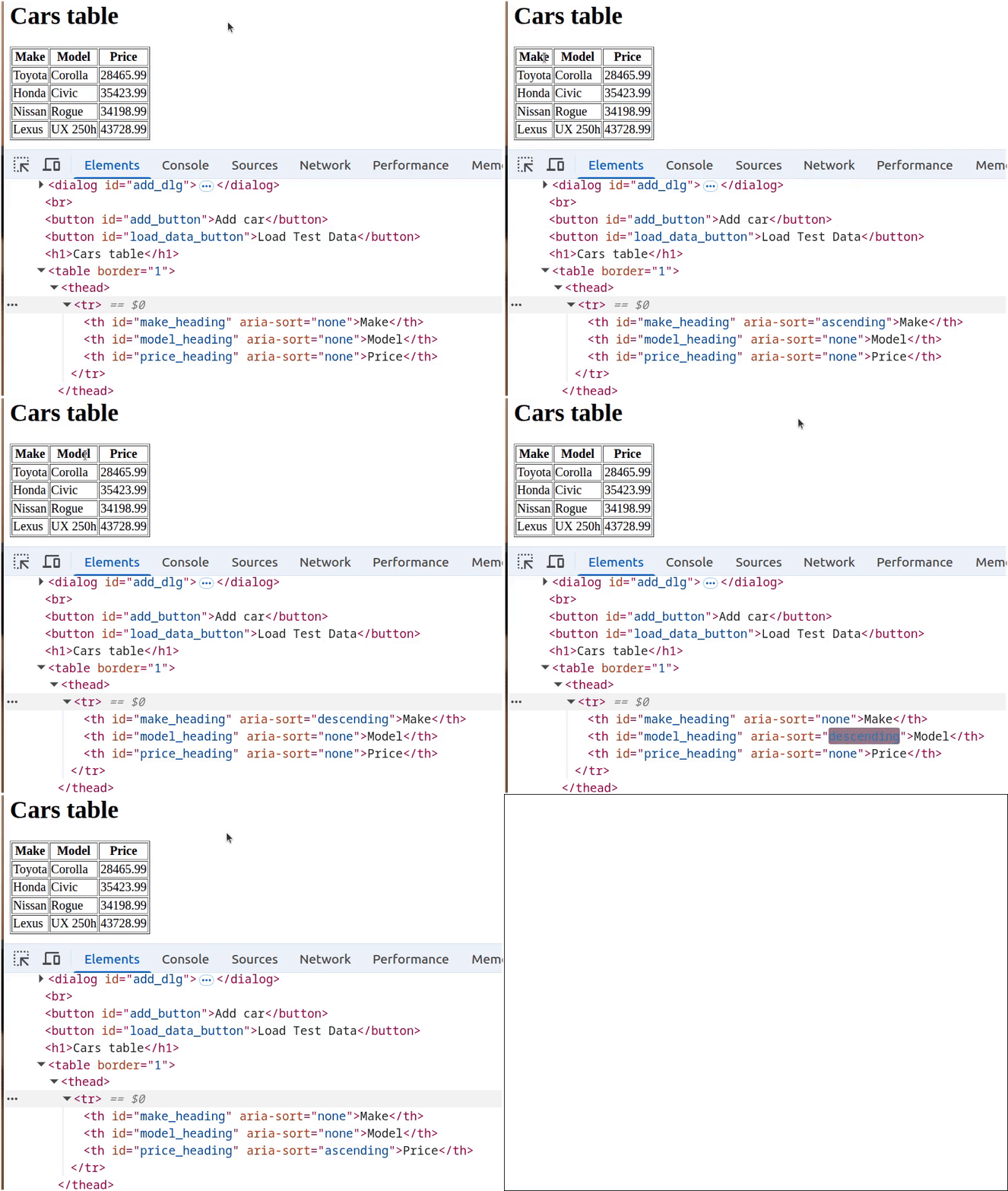
Click on Reload gif to replay animation.
Using a HTML <fragment> to help update the HTML <tbody> element
Now that we know we can sort car_data, we can make use of car_data to create a HTML <fragment> that we can use to replace the <tbody="cars_tbody"> contents. This next version of index.mjs will add the makeFragment() helper function to create such a <fragment>:
import { Car } from "./cars.mjs";

if (document.readyState === "loading") {
  document.addEventListener('DOMContentLoaded', init);
} else {
  init();
}

function createApp() {
  // private values here
  const self = {
    handleOk: handleOk,
    handleSort: handleSort,
    handleLoad: handleLoad
  };
  let car_data = [];
  const make_box = document.getElementById("make_box");
  const model_box = document.getElementById("model_box");
  const price_box = document.getElementById("price_box");
  const cars_tbody = document.getElementById("cars_tbody");
  const add_dlg = document.getElementById("add_dlg");
  const add_button = document.getElementById("add_button");
  add_button.addEventListener("click", showAddDlg);

  // =========== API for interacting with user =========
  function handleOk() {
    const make = make_box.value.trim();
    const model = model_box.value.trim();
    const price = Number(price_box.value.trim());
    const car = new Car(make, model, price);
    car_data.push(car);
    console.log('car_data:', car_data);
    updateTable();
    make_box.value = "";
    model_box.value = "";
    price_box.value = "";
    add_dlg.close();
  }

  function handleSort(event) {
    const id = event.target.id;
    const property = id.split("_")[0];
    if (property === "make" || property === "model") {
      sortByString(property);
    } else if (property === "price") {
      sortByNumber(property);
    }
  }

  function handleLoad() {
    const c1 = new Car("Toyota", "Corolla", 28465.99);
    const c2 = new Car("Honda", "Civic", 35423.99);
    const c3 = new Car("Nissan", "Rogue", 34198.99);
    const c4 = new Car("Lexus", "UX 250h", 43728.99);
    car_data = [];
    car_data.push(c1);
    car_data.push(c2);
    car_data.push(c3);
    car_data.push(c4);
    updateTable();
  }
  // =========== end of API for interacting with user ==

  // =========== helper functions =============
  function updateTable() {
    clear_tbody();
    for (let i = 0; i < car_data.length; i++) {
      const car = car_data[i];
      const tr = document.createElement('tr');
      let td = document.createElement('td');
      const make = document.createTextNode(car.make);
      td.appendChild(make);
      tr.appendChild(td);
      td = document.createElement('td');
      const model = document.createTextNode(car.model);
      td.appendChild(model);
      tr.appendChild(td);
      td = document.createElement('td');
      const price = document.createTextNode(car.price);
      td.appendChild(price);
      tr.appendChild(td);
      cars_tbody.appendChild(tr);
    }
  }

  function showAddDlg() {
    add_dlg.showModal();
  }

  function makeFragment() {
    const fragment = document.createDocumentFragment();
    for (let car of car_data) {
      const tr = document.createElement('tr');
      let td = document.createElement('td');
      let contents = document.createTextNode(car.make);
      td.appendChild(contents);
      tr.appendChild(td);
      td = document.createElement('td');
      contents = document.createTextNode(car.model);
      td.appendChild(contents);
      tr.appendChild(td);
      td = document.createElement('td');
      contents = document.createTextNode(car.price);
      td.appendChild(contents);
      tr.appendChild(td);
      fragment.appendChild(tr);
    }
    return fragment;
  }

  function sortByString(property) {
    const header = document.getElementById(property + "_heading");
    const sort_dir = header.getAttribute("aria-sort");
    //let actual_sort = "";
    if (sort_dir === "none" || sort_dir === "descending") {
      car_data.sort((a,b) => a[property].localeCompare(b[property]));
      header.setAttribute("aria-sort", "ascending");
      //actual_sort = "ascending";
    } else if (sort_dir === "ascending") {
      car_data.sort((a,b) => b[property].localeCompare(a[property]));
      header.setAttribute("aria-sort", "descending");
      //actual_sort = "descending";
    }
    resetHeadings(property);
    /*
    console.log(`sorting by ${property}, ${actual_sort}`);
    for (let car of car_data) {
      console.log(car);
    }
    */
    const fragment = makeFragment();
    cars_tbody.replaceChildren(fragment);
  }

  function sortByNumber(property) {
    const header = document.getElementById(property + "_heading");
    const sort_dir = header.getAttribute("aria-sort");
    //let actual_sort = "";
    if (sort_dir === "none" || sort_dir === "descending") {
      car_data.sort((a,b) => a[property] - b[property]);
      header.setAttribute("aria-sort", "ascending");
      //actual_sort = "ascending";
    } else if (sort_dir === "ascending") {
      car_data.sort((a,b) => b[property] - a[property]);
      header.setAttribute("aria-sort", "descending");
      //actual_sort = "descending";
    }
    resetHeadings(property);
    /*
    console.log(`sorting by ${property}, ${actual_sort}`);
    for (let car of car_data) {
      console.log(car);
    }
    */
    const fragment = makeFragment();
    cars_tbody.replaceChildren(fragment);
  }

  function resetHeadings(property) {
    const id = property + "_heading";
    const headers = document.getElementsByTagName('th');
    for (let header of headers) {
      if (header.id !== id) {
        header.setAttribute("aria-sort", "none");
      }
    }
  }

  function clear_tbody() {
    while (cars_tbody.childNodes.length > 0) {
      cars_tbody.removeChild(cars_tbody.childNodes[0]);
    }
  }
  // =========== end of helper functions ======

  return self;
}

function init() {
  console.log('init called');
  const myApp = createApp();
  const ok_button = document.getElementById("ok_button");
  ok_button.addEventListener("click", myApp.handleOk);
  const load_data_button = document.getElementById("load_data_button");
  load_data_button.addEventListener("click", myApp.handleLoad);
  const table_headers = document.getElementsByTagName('th');
  for (let header of table_headers) {
    header.addEventListener("click", () => {
      myApp.handleSort(event);
    });
  }
}
The new lines are 90-109, 114, 118, 122, 125-132, 138, 142, 146 and 149-156. Lines 90-109 define the makeFragment() helper function. It is similar to the updateTable() helper function above it. The main differences are that instead of appending directly to the cars_tbody reference, the table rows are appended to the fragment. Then, the replaceChildren() method is used to replace the cars_tbody content with fragment. Line 69 creates a document <fragment> element named fragment. Lines 92-107 define a for loop that iterates over all the elements in the car_data array. Line 93 creates a <tr> element. Line 94 creates a <td> element. Line 95 creates a TextNode from car.make and stores this as contents. Line 96 appends contents to the <td> element, and line 97 appends td to the <tr> element. Lines 98-101 do the same thing as lines 94-97, except that content is the TextNode created from car.model. Lines 102-105 do the same thing as lines 94-97 and lines 98-101, except that the contents of the TextNode is car.price. Line 106 appends the <tr> element to the <fragment> element. After the for loop completes, fragment is returned to the calling function on line 108.
Lines 114, 118, 122, and 125-130 are all lines that were used for debugging purposes, but are no longer needed because now the table will show the result of doing the different sorts. So, those lines are all commented out and will be removed in the next version of index.mjs. The same thing applies to lines 138, 142, 146 and 149-154. Those lines are all commented out and will be removed in the next version of index.mjs. Those lines were also only there for debugging purposes.
Line 155 calls makeFragment() after the sort has been done. Then, line 156 replaces the contents of <tbody id="cars_tbody"> with fragment. Lines 155 and 156 do the same thing as lines 131 and 132, except that lines 155 and 156 are for a sort done for a property with numeric data, instead of string data.
The following animated gif shows that the application can now sort the table by column.
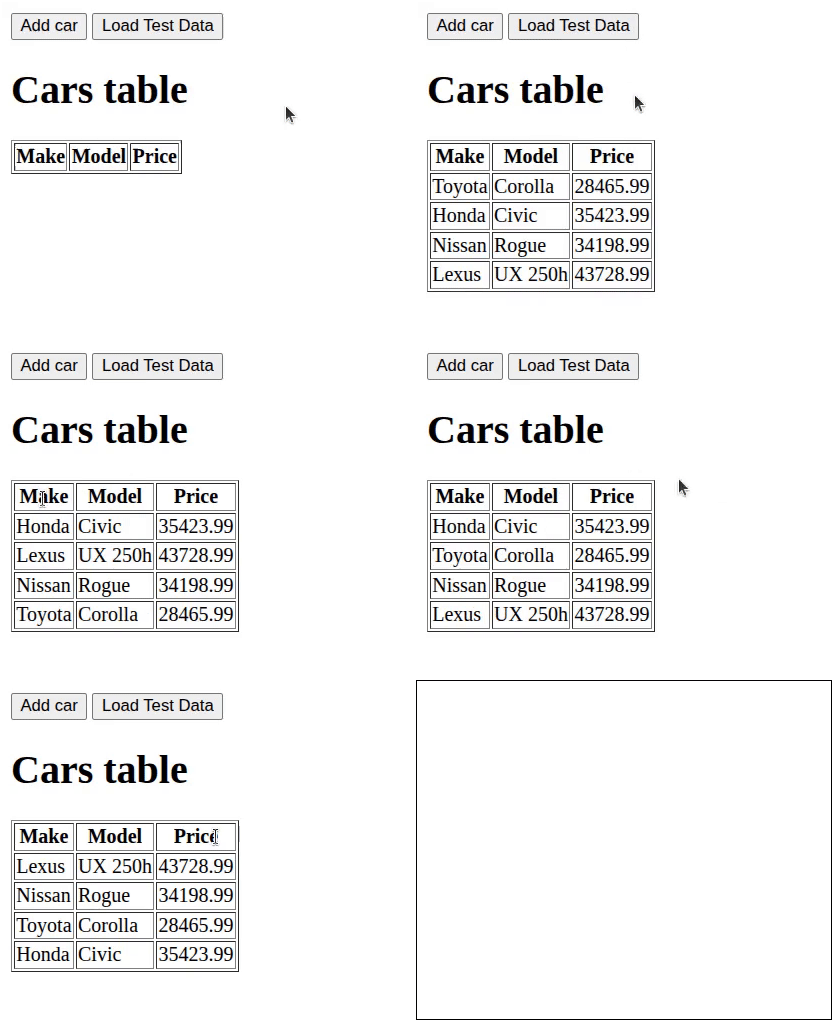
Click on Reload gif to replay animation.
As you can see, clicking on a column header causes the table to get sorted in ascending order by that column. Clicking on the same column header right after that changes the sort to a descending order sort. If you kept clicking on the same column header, this would toggle back and forth between ascending order and descending order.
Editing/deleting a row of data
The ability to edit a row of data, or delete that row of data is also a complex process. Here is a list of things that need to be performed in order to do this:
-
Create another <dialog> element for the edit dialog inside index.html. This <dialog> element with have an id="edit_dlg" attribute. This <dialog> will have three <input> text boxes for the make, model and price of a Car object. This <dialog> will also have three <button> elements. One <button> wil be a Cancel button in case the user wants to discard any edits. A second <button> element will be a Submit button used to save the changes made in the edit. A third <button> will be a Delete button that is used to delete that row of data.
-
Since the
makeFragment()helper function could really replace theupdateTable()function, we can just use themakeFragment()function from now on. So themakeFragment()function will be modified so that each <tr> element will have an id attribute that has the same value as the index of the car_data array for that row. This will make it straightforward to determine which car_data element needs to be edited or removed. To remove an element from the car_data array, the array.splice() method will be used. Actually, instead of deleting theupdateTable()function, this function can be changed to just callmakeFragment()to update the HTML table. That means that we will only call the modifiedupdateTable()to update the contents of the HTML table. -
Create another helper function called
showEditDlg()that will be called when the user clicks on a row of data. TheshowEditDlg()function will get the Car object stored at that row, and use this to populate the <input> text boxes of the edit dialog. That way, the user will know what they are changing for that row of data. -
Create another handler function called
handleEdit()that will be called when the user clicks on the Submit button of the edit dialog. This will cause changes to be made to the car_data array. This will be followed by a call to the modifiedupdateTable()to show the changes in the HTML table that result from changing the underlying data from car_data.
Adding a <dialog> element for editing a row
Here are the changes to index.html to add a <dialog> element to edit a table row.
<!DOCTYPE html>
<html lang="en">
  <head>
    <meta charset="UTF-8" />
    <script type="module" src="index.mjs"></script>
    <title>Cars</title>
  </head>
  <body>
    <dialog id="add_dlg">
      Enter car info: <br />
      Make:
      <input type="text" id="make_box"><br />
      Model:
      <input type="text" id="model_box"><br />
      Price:
      <input type="text" id="price_box"><br />
      <br />
      <button id="ok_button">Ok</button>
    </dialog>
    <dialog id="edit_dlg">
      Edit car info: <br />
      Make:
      <input type="text" id="make_edit_box"><br />
      Model:
      <input type="text" id="model_edit_box"><br />
      Price:
      <input type="text" id="price_edit_box"><br />
      <br />
      <button id="cancel_button">Cancel</button>
      <button id="submit_button">Submit</button>
      <button id="delete_button">Delete</button>
    </dialog>
    <br />
    <button id="add_button">Add car</button>
    <button id="load_data_button">Load Test Data</button>
    <h1>Cars table</h1>
    <table border="1">
      <thead>
        <tr>
          <th id="make_heading" aria-sort="none">Make</th>
          <th id="model_heading" aria-sort="none">Model</th>
          <th id="price_heading" aria-sort="none">Price</th>
        </tr>
      </thead>
      <tbody id="cars_tbody"></tbody>
    </table>
  </body>
</html>
The new lines are 20-32. Lines 20-32 define another <dialog> element with an id="edit_dlg" attribute. Line 21 is just an overall prompt to edit the data. Lines 22 and 23 prompt for and provide an <input> text box to hold the current value for the Car's make. The <input> text box will allow making changes to that value. lines 24 and 25 do the same thing as lines 22-23, except for the Car's model. Lines 26 and 27 do the same thing as lines 24-25 and lines 22-23, except for the Car's price. Line 28 places a blank line before the row of <button> elements defined on lines 29-31. Line 29 defines a <button> element that will be used as the Cancel button, that is hit if the user decides they want to discard the edits. Line 30 defines a <button> element that will be used as the Submit button that will saved the edited values. Line 31 defines a <button> element that will be clicked on if the user decides they want to delete that row entirely.
Modifying the makeFragment() and updateTable() helper functions
Next, we can modify the makeFragment() helper function to give each table row and id attribute with a value equal to the index from the car_data array. This means we will use an index-based for loop instead of the for each style that we had previously used. Then, we will modify updateTable() to just call makeFragment() before replacing the children for the cars_tbody element.
Here is the new version of index.mjs:
import { Car } from "./cars.mjs";

if (document.readyState === "loading") {
  document.addEventListener('DOMContentLoaded', init);
} else {
  init();
}

function createApp() {
  // private values here
  const self = {
    handleOk: handleOk,
    handleSort: handleSort,
    handleLoad: handleLoad
  };
  let car_data = [];
  const make_box = document.getElementById("make_box");
  const model_box = document.getElementById("model_box");
  const price_box = document.getElementById("price_box");
  const cars_tbody = document.getElementById("cars_tbody");
  const add_dlg = document.getElementById("add_dlg");
  const add_button = document.getElementById("add_button");
  add_button.addEventListener("click", showAddDlg);

  // =========== API for interacting with user =========
  function handleOk() {
    const make = make_box.value.trim();
    const model = model_box.value.trim();
    const price = Number(price_box.value.trim());
    const car = new Car(make, model, price);
    car_data.push(car);
    console.log('car_data:', car_data);
    updateTable();
    make_box.value = "";
    model_box.value = "";
    price_box.value = "";
    add_dlg.close();
  }

  function handleSort(event) {
    const id = event.target.id;
    const property = id.split("_")[0];
    if (property === "make" || property === "model") {
      sortByString(property);
    } else if (property === "price") {
      sortByNumber(property);
    }
  }

  function handleLoad() {
    const c1 = new Car("Toyota", "Corolla", 28465.99);
    const c2 = new Car("Honda", "Civic", 35423.99);
    const c3 = new Car("Nissan", "Rogue", 34198.99);
    const c4 = new Car("Lexus", "UX 250h", 43728.99);
    car_data = [];
    car_data.push(c1);
    car_data.push(c2);
    car_data.push(c3);
    car_data.push(c4);
    updateTable();
  }
  // =========== end of API for interacting with user ==

  // =========== helper functions =============
  function updateTable() {
    const fragment = makeFragment();
    cars_tbody.replaceChildren(fragment);
  }

  function showAddDlg() {
    add_dlg.showModal();
  }

  function makeFragment() {
    const fragment = document.createDocumentFragment();
    for (let i = 0; i < car_data.length; i++) {
      const car = car_data[i];
      const tr = document.createElement('tr');
      tr.setAttribute("id", i);
      let td = document.createElement('td');
      let contents = document.createTextNode(car.make);
      td.appendChild(contents);
      tr.appendChild(td);
      td = document.createElement('td');
      contents = document.createTextNode(car.model);
      td.appendChild(contents);
      tr.appendChild(td);
      td = document.createElement('td');
      contents = document.createTextNode(car.price);
      td.appendChild(contents);
      tr.appendChild(td);
      fragment.appendChild(tr);
    }
    return fragment;
  }

  function sortByString(property) {
    const header = document.getElementById(property + "_heading");
    const sort_dir = header.getAttribute("aria-sort");
    if (sort_dir === "none" || sort_dir === "descending") {
      car_data.sort((a,b) => a[property].localeCompare(b[property]));
      header.setAttribute("aria-sort", "ascending");
    } else if (sort_dir === "ascending") {
      car_data.sort((a,b) => b[property].localeCompare(a[property]));
      header.setAttribute("aria-sort", "descending");
    }
    resetHeadings(property);
    updateTable();
  }

  function sortByNumber(property) {
    const header = document.getElementById(property + "_heading");
    const sort_dir = header.getAttribute("aria-sort");
    if (sort_dir === "none" || sort_dir === "descending") {
      car_data.sort((a,b) => a[property] - b[property]);
      header.setAttribute("aria-sort", "ascending");
    } else if (sort_dir === "ascending") {
      car_data.sort((a,b) => b[property] - a[property]);
      header.setAttribute("aria-sort", "descending");
    }
    resetHeadings(property);
    updateTable();
  }

  function resetHeadings(property) {
    const id = property + "_heading";
    const headers = document.getElementsByTagName('th');
    for (let header of headers) {
      if (header.id !== id) {
        header.setAttribute("aria-sort", "none");
      }
    }
  }

  function clear_tbody() {
    while (cars_tbody.childNodes.length > 0) {
      cars_tbody.removeChild(cars_tbody.childNodes[0]);
    }
  }
  // =========== end of helper functions ======

  return self;
}

function init() {
  console.log('init called');
  const myApp = createApp();
  const ok_button = document.getElementById("ok_button");
  ok_button.addEventListener("click", myApp.handleOk);
  const load_data_button = document.getElementById("load_data_button");
  load_data_button.addEventListener("click", myApp.handleLoad);
  const table_headers = document.getElementsByTagName('th');
  for (let header of table_headers) {
    header.addEventListener("click", () => {
      myApp.handleSort(event);
    });
  }
}
The new lines are 66-67, 76-77, 79, 108 and 122. Let’s talk first about the lines that are new or modified in the makeFragment() helper function. These are lines 76-77 and 79. Line 76 changes to an index-based for loop. This will make it easier to set an id attribute that has a value of the car_data index. Line 77 is just a convenience step that lets us use car in place of car_data[i]. That means all the following instructions that use things like car.make don’t need to be changed. Line 78 adds the id attribute to the <tr> element and gives the id a value of i, the index from the car_data array.
Lines 66-67 represent the new contents of the updateTable() helper function. All the previous lines we had for updateTable() are replaced by just those two lines. Line 66 gets the <fragment> created from car_data using the makeFragment() function. Then, line 67 replaces the children of cars_tbody with that fragment. This is greatly simplified from the previous version of updateTable(), and also removes the need to call clear_tbody().
For both the sortByString() and sortByNumber() helper functions, all the lines that were commented out because they were no longer needed for debugging have been removed. Line 108 and line 122 replace the lines that were identical to lines 66 and 67, with a call to updateTable().
Any lines elsewhere in the code that were calls to updateTable() can remain unchanged. Also, the number of repeated lines in the old updateTable() and makeFragment() functions have been removed. Remember that if you have a lot of repeated code, this is something that should be fixed.
If you run the application now and click on the Load Test Data button, you can look at the Elements tab and see that the id attributes have been added to all the <tr> elements in the <tbody> element. This is shown in the following screen shot.
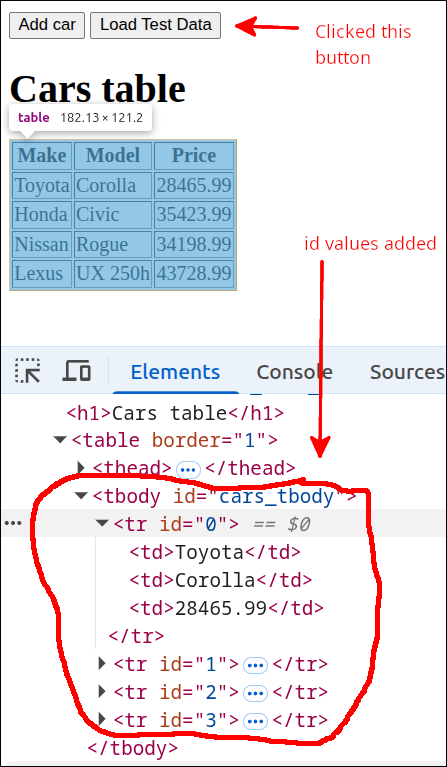
Adding click event handler, showEditDlg
Next, we can add the showEditDlg() helper function that will be the function called when the user clicks on a row from the table body. We need to also make another modification to the makeFragment() helper function to add a click event listener to each <tr> element. Here is the new version of index.mjs that does these things.
import { Car } from "./cars.mjs";

if (document.readyState === "loading") {
  document.addEventListener('DOMContentLoaded', init);
} else {
  init();
}

function createApp() {
  // private values here
  const self = {
    handleOk: handleOk,
    handleSort: handleSort,
    handleLoad: handleLoad
  };
  let car_data = [];
  const make_box = document.getElementById("make_box");
  const model_box = document.getElementById("model_box");
  const price_box = document.getElementById("price_box");
  const cars_tbody = document.getElementById("cars_tbody");
  const add_dlg = document.getElementById("add_dlg");
  const add_button = document.getElementById("add_button");
  add_button.addEventListener("click", showAddDlg);
  const edit_dlg = document.getElementById("edit_dlg");

  // =========== API for interacting with user =========
  function handleOk() {
    const make = make_box.value.trim();
    const model = model_box.value.trim();
    const price = Number(price_box.value.trim());
    const car = new Car(make, model, price);
    car_data.push(car);
    console.log('car_data:', car_data);
    updateTable();
    make_box.value = "";
    model_box.value = "";
    price_box.value = "";
    add_dlg.close();
  }

  function handleSort(event) {
    const id = event.target.id;
    const property = id.split("_")[0];
    if (property === "make" || property === "model") {
      sortByString(property);
    } else if (property === "price") {
      sortByNumber(property);
    }
  }

  function handleLoad() {
    const c1 = new Car("Toyota", "Corolla", 28465.99);
    const c2 = new Car("Honda", "Civic", 35423.99);
    const c3 = new Car("Nissan", "Rogue", 34198.99);
    const c4 = new Car("Lexus", "UX 250h", 43728.99);
    car_data = [];
    car_data.push(c1);
    car_data.push(c2);
    car_data.push(c3);
    car_data.push(c4);
    updateTable();
  }
  // =========== end of API for interacting with user ==

  // =========== helper functions =============
  function updateTable() {
    const fragment = makeFragment();
    cars_tbody.replaceChildren(fragment);
  }

  function showEditDlg(event) {
    const id = event.currentTarget.id;
    const car = car_data[id];
    console.log('car', car);
    edit_dlg.showModal();
  }

  function showAddDlg() {
    add_dlg.showModal();
  }

  function makeFragment() {
    const fragment = document.createDocumentFragment();
    for (let i = 0; i < car_data.length; i++) {
      const car = car_data[i];
      const tr = document.createElement('tr');
      tr.setAttribute("id", i);
      tr.addEventListener("click", (event) => {
        showEditDlg(event);
      });
      let td = document.createElement('td');
      let contents = document.createTextNode(car.make);
      td.appendChild(contents);
      tr.appendChild(td);
      td = document.createElement('td');
      contents = document.createTextNode(car.model);
      td.appendChild(contents);
      tr.appendChild(td);
      td = document.createElement('td');
      contents = document.createTextNode(car.price);
      td.appendChild(contents);
      tr.appendChild(td);
      fragment.appendChild(tr);
    }
    return fragment;
  }

  function sortByString(property) {
    const header = document.getElementById(property + "_heading");
    const sort_dir = header.getAttribute("aria-sort");
    if (sort_dir === "none" || sort_dir === "descending") {
      car_data.sort((a,b) => a[property].localeCompare(b[property]));
      header.setAttribute("aria-sort", "ascending");
    } else if (sort_dir === "ascending") {
      car_data.sort((a,b) => b[property].localeCompare(a[property]));
      header.setAttribute("aria-sort", "descending");
    }
    resetHeadings(property);
    updateTable();
  }

  function sortByNumber(property) {
    const header = document.getElementById(property + "_heading");
    const sort_dir = header.getAttribute("aria-sort");
    if (sort_dir === "none" || sort_dir === "descending") {
      car_data.sort((a,b) => a[property] - b[property]);
      header.setAttribute("aria-sort", "ascending");
    } else if (sort_dir === "ascending") {
      car_data.sort((a,b) => b[property] - a[property]);
      header.setAttribute("aria-sort", "descending");
    }
    resetHeadings(property);
    updateTable();
  }

  function resetHeadings(property) {
    const id = property + "_heading";
    const headers = document.getElementsByTagName('th');
    for (let header of headers) {
      if (header.id !== id) {
        header.setAttribute("aria-sort", "none");
      }
    }
  }

  function clear_tbody() {
    while (cars_tbody.childNodes.length > 0) {
      cars_tbody.removeChild(cars_tbody.childNodes[0]);
    }
  }
  // =========== end of helper functions ======

  return self;
}

function init() {
  console.log('init called');
  const myApp = createApp();
  const ok_button = document.getElementById("ok_button");
  ok_button.addEventListener("click", myApp.handleOk);
  const load_data_button = document.getElementById("load_data_button");
  load_data_button.addEventListener("click", myApp.handleLoad);
  const table_headers = document.getElementsByTagName('th');
  for (let header of table_headers) {
    header.addEventListener("click", () => {
      myApp.handleSort(event);
    });
  }
}
The new lines are 24, 71-76 and 88-90. Line 24 gets a reference to the <dialog id="edit_dlg"> element. Lines 71-76 define the showEditDlg() helper function. Line 72 stores event.currentTarget.id as id. Note that we are using event.currentTarget, instead of event.target. This is an important distinction. This is because of the nested nature of the <tr> element. Note that each <tr> element has three <td> elements nested inside. So, if you used event.target then clicking on a part of the table row that is one of the data cells would return the <td> element being clicked on. That is not what we want in this case. So, using event.currentTarget we get the enclosing element instead of the elements nested inside that enclosing element.
Line 73 select the actual Car record from car_data. Line 74 prints that Car object to the Console for debugging purposes. Line 75 uses the showModal() method to open the edit dialog box.
Lines 88-90 modify the makeFragment() method so that each <tr> will use showEditDlg() as the function to call when the <tr> element is clicked.
When the application is run, you can click on the Load Test Data button, and click on one of the table rows. In the following screen shot, I clicked on the second row of data:
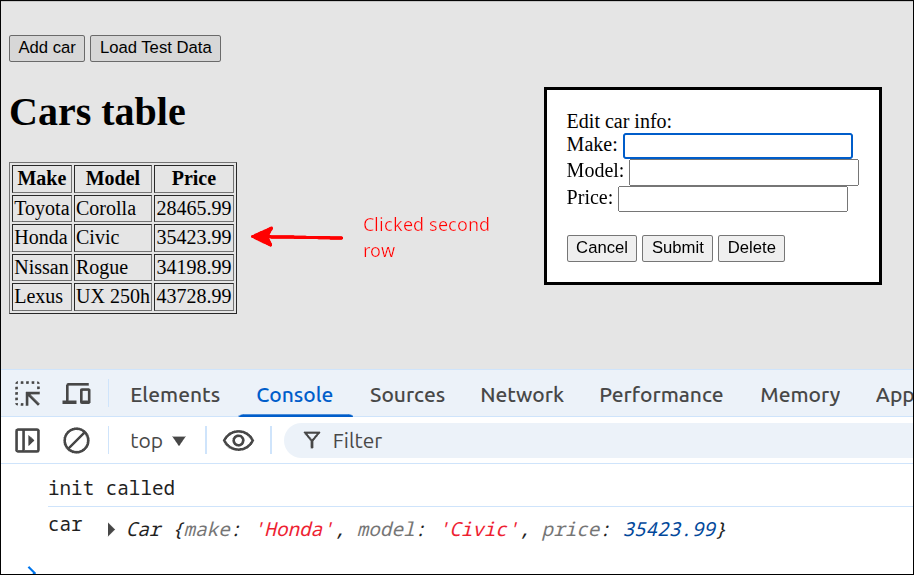
Refactoring, reorganizing index.mjs
In looking over index.mjs, I realized that the showEditDlg() and showAddDlg() functions are directly involved with user-interaction. So, they should be placed in the API section of the factory function. Also, the clear_tbody() function is not needed, so that can be removed. When you reorganize the code, this is one form of refactoring. Refactoring the code can involve things like removing repeated code or reorganizing the code so it will be easier to update and maintain. It can also involve removing code that is no longer needed.
Here is the refactored version of index.mjs:
import { Car } from "./cars.mjs";

if (document.readyState === "loading") {
  document.addEventListener('DOMContentLoaded', init);
} else {
  init();
}

function createApp() {
  // private values here
  const self = {
    handleOk: handleOk,
    handleSort: handleSort,
    showAddDlg: showAddDlg,
    showEditDlg: showEditDlg,
    handleLoad: handleLoad
  };
  let car_data = [];
  const make_box = document.getElementById("make_box");
  const model_box = document.getElementById("model_box");
  const price_box = document.getElementById("price_box");
  const cars_tbody = document.getElementById("cars_tbody");
  const add_dlg = document.getElementById("add_dlg");
  const add_button = document.getElementById("add_button");
  add_button.addEventListener("click", self.showAddDlg);
  const edit_dlg = document.getElementById("edit_dlg");

  // =========== API for interacting with user =========
  function handleOk() {
    const make = make_box.value.trim();
    const model = model_box.value.trim();
    const price = Number(price_box.value.trim());
    const car = new Car(make, model, price);
    car_data.push(car);
    console.log('car_data:', car_data);
    updateTable();
    make_box.value = "";
    model_box.value = "";
    price_box.value = "";
    add_dlg.close();
  }

  function handleSort(event) {
    const id = event.target.id;
    const property = id.split("_")[0];
    if (property === "make" || property === "model") {
      sortByString(property);
    } else if (property === "price") {
      sortByNumber(property);
    }
  }

  function showEditDlg(event) {
    const id = event.currentTarget.id;
    const car = car_data[id];
    console.log('car', car);
    edit_dlg.showModal();
  }

  function showAddDlg() {
    add_dlg.showModal();
  }


  function handleLoad() {
    const c1 = new Car("Toyota", "Corolla", 28465.99);
    const c2 = new Car("Honda", "Civic", 35423.99);
    const c3 = new Car("Nissan", "Rogue", 34198.99);
    const c4 = new Car("Lexus", "UX 250h", 43728.99);
    car_data = [];
    car_data.push(c1);
    car_data.push(c2);
    car_data.push(c3);
    car_data.push(c4);
    updateTable();
  }
  // =========== end of API for interacting with user ==

  // =========== helper functions =============
  function updateTable() {
    const fragment = makeFragment();
    cars_tbody.replaceChildren(fragment);
  }

  function makeFragment() {
    const fragment = document.createDocumentFragment();
    for (let i = 0; i < car_data.length; i++) {
      const car = car_data[i];
      const tr = document.createElement('tr');
      tr.setAttribute("id", i);
      tr.addEventListener("click", (event) => {
        self.showEditDlg(event);
      });
      let td = document.createElement('td');
      let contents = document.createTextNode(car.make);
      td.appendChild(contents);
      tr.appendChild(td);
      td = document.createElement('td');
      contents = document.createTextNode(car.model);
      td.appendChild(contents);
      tr.appendChild(td);
      td = document.createElement('td');
      contents = document.createTextNode(car.price);
      td.appendChild(contents);
      tr.appendChild(td);
      fragment.appendChild(tr);
    }
    return fragment;
  }

  function sortByString(property) {
    const header = document.getElementById(property + "_heading");
    const sort_dir = header.getAttribute("aria-sort");
    if (sort_dir === "none" || sort_dir === "descending") {
      car_data.sort((a,b) => a[property].localeCompare(b[property]));
      header.setAttribute("aria-sort", "ascending");
    } else if (sort_dir === "ascending") {
      car_data.sort((a,b) => b[property].localeCompare(a[property]));
      header.setAttribute("aria-sort", "descending");
    }
    resetHeadings(property);
    updateTable();
  }

  function sortByNumber(property) {
    const header = document.getElementById(property + "_heading");
    const sort_dir = header.getAttribute("aria-sort");
    if (sort_dir === "none" || sort_dir === "descending") {
      car_data.sort((a,b) => a[property] - b[property]);
      header.setAttribute("aria-sort", "ascending");
    } else if (sort_dir === "ascending") {
      car_data.sort((a,b) => b[property] - a[property]);
      header.setAttribute("aria-sort", "descending");
    }
    resetHeadings(property);
    updateTable();
  }

  function resetHeadings(property) {
    const id = property + "_heading";
    const headers = document.getElementsByTagName('th');
    for (let header of headers) {
      if (header.id !== id) {
        header.setAttribute("aria-sort", "none");
      }
    }
  }
  // =========== end of helper functions ======

  return self;
}

function init() {
  console.log('init called');
  const myApp = createApp();
  const ok_button = document.getElementById("ok_button");
  ok_button.addEventListener("click", myApp.handleOk);
  const load_data_button = document.getElementById("load_data_button");
  load_data_button.addEventListener("click", myApp.handleLoad);
  const table_headers = document.getElementsByTagName('th');
  for (let header of table_headers) {
    header.addEventListener("click", () => {
      myApp.handleSort(event);
    });
  }
}
The new or modified lines are 14-15, 25-26, 53-58, 60-62 and 92. Lines 14 and 15 modify the definition of self so that showAddDlg() and showEditDlg() are now in the list of API functions returned. This is because those functions are called when the user clicks on a button or on a table row, respectively. Those are definitely user-interactions, so they belong inside the returned API functions.
Line 25 modifies the handling function to be self.showAddDlg, because showAddDlg() has been moved to the API area. Line 26 gets a reference to the <dialog id="edit_dlg"> element, and stores this as edit_dlg.
Lines 53-58 are the lines for the relocated showEditDlg() function. Lines 60-62 are the lines for the relocated showAddDlg() function.
Line 92 is modified so that the click event handler is self.showEditDlg(event), because showEditDlg() has been moved into the returned API functions.
This reshuffling does not affect how the program runs. But, by putting the functions directly involved with user actions in the same place, this could make the code easier to maintain and update. It is a good idea to look over your programs and think if the code could benefit from being refactored once it is already working.
Making the edit dialog box functional
To make the edit dialog box functional, we need to perform the following:
-
Get a reference to the Submit button of the edit dialog box, and stores this as one of the private variables of the
createHandlers()factory function. -
Upon clicking on a table row, use the underlying car_data array data corresponding to that row to populate the <input> text boxes in the edit dialog.
-
Create a handleEdit helper function that will get the values from the <input> text boxes in the edit dialog, and update the Car object properties. This is the function that will be called when the user hits the Submit button.
-
Call
updateTable()and close edit_dlg.
Here is the updated version of index.mjs:
import { Car } from "./cars.mjs";

if (document.readyState === "loading") {
  document.addEventListener('DOMContentLoaded', init);
} else {
  init();
}

function createApp() {
  // private values here
  const self = {
    handleOk: handleOk,
    handleSort: handleSort,
    showAddDlg: showAddDlg,
    showEditDlg: showEditDlg,
    handleSubmit: handleSubmit,
    handleLoad: handleLoad
  };
  let car_data = [];
  const make_box = document.getElementById("make_box");
  const model_box = document.getElementById("model_box");
  const price_box = document.getElementById("price_box");
  const cars_tbody = document.getElementById("cars_tbody");
  const add_dlg = document.getElementById("add_dlg");
  const add_button = document.getElementById("add_button");
  add_button.addEventListener("click", self.showAddDlg);
  const edit_dlg = document.getElementById("edit_dlg");
  const make_edit_box = document.getElementById("make_edit_box");
  const model_edit_box = document.getElementById("model_edit_box");
  const price_edit_box = document.getElementById("price_edit_box");
  const submit_button = document.getElementById("submit_button");
  submit_button.addEventListener("click", self.handleSubmit);
  let car_id;

  // =========== API for interacting with user =========
  function handleOk() {
    const make = make_box.value.trim();
    const model = model_box.value.trim();
    const price = Number(price_box.value.trim());
    const car = new Car(make, model, price);
    car_data.push(car);
    console.log('car_data:', car_data);
    updateTable();
    make_box.value = "";
    model_box.value = "";
    price_box.value = "";
    add_dlg.close();
  }

  function handleSort(event) {
    const id = event.target.id;
    const property = id.split("_")[0];
    if (property === "make" || property === "model") {
      sortByString(property);
    } else if (property === "price") {
      sortByNumber(property);
    }
  }

  function showEditDlg(event) {
    const id = event.currentTarget.id;
    const car = car_data[id];
    console.log('car', car);
    car_id = id;
    make_edit_box.value = car.make;
    model_edit_box.value = car.model;
    price_edit_box.value = car.price;
    edit_dlg.showModal();
  }

  function handleSubmit() {
    const make = make_edit_box.value.trim();
    const model = model_edit_box.value.trim();
    const price = Number(price_edit_box.value.trim());
    const car = car_data[car_id];
    car.make = make;
    car.model = model;
    car.price = price;
    updateTable();
    edit_dlg.close();
  }

  function showAddDlg() {
    add_dlg.showModal();
  }

  function handleLoad() {
    const c1 = new Car("Toyota", "Corolla", 28465.99);
    const c2 = new Car("Honda", "Civic", 35423.99);
    const c3 = new Car("Nissan", "Rogue", 34198.99);
    const c4 = new Car("Lexus", "UX 250h", 43728.99);
    car_data = [];
    car_data.push(c1);
    car_data.push(c2);
    car_data.push(c3);
    car_data.push(c4);
    updateTable();
  }
  // =========== end of API for interacting with user ==

  // =========== helper functions =============
  function updateTable() {
    const fragment = makeFragment();
    cars_tbody.replaceChildren(fragment);
  }

  function makeFragment() {
    const fragment = document.createDocumentFragment();
    for (let i = 0; i < car_data.length; i++) {
      const car = car_data[i];
      const tr = document.createElement('tr');
      tr.setAttribute("id", i);
      tr.addEventListener("click", (event) => {
        self.showEditDlg(event);
      });
      let td = document.createElement('td');
      let contents = document.createTextNode(car.make);
      td.appendChild(contents);
      tr.appendChild(td);
      td = document.createElement('td');
      contents = document.createTextNode(car.model);
      td.appendChild(contents);
      tr.appendChild(td);
      td = document.createElement('td');
      contents = document.createTextNode(car.price);
      td.appendChild(contents);
      tr.appendChild(td);
      fragment.appendChild(tr);
    }
    return fragment;
  }

  function sortByString(property) {
    const header = document.getElementById(property + "_heading");
    const sort_dir = header.getAttribute("aria-sort");
    if (sort_dir === "none" || sort_dir === "descending") {
      car_data.sort((a,b) => a[property].localeCompare(b[property]));
      header.setAttribute("aria-sort", "ascending");
    } else if (sort_dir === "ascending") {
      car_data.sort((a,b) => b[property].localeCompare(a[property]));
      header.setAttribute("aria-sort", "descending");
    }
    resetHeadings(property);
    updateTable();
  }

  function sortByNumber(property) {
    const header = document.getElementById(property + "_heading");
    const sort_dir = header.getAttribute("aria-sort");
    if (sort_dir === "none" || sort_dir === "descending") {
      car_data.sort((a,b) => a[property] - b[property]);
      header.setAttribute("aria-sort", "ascending");
    } else if (sort_dir === "ascending") {
      car_data.sort((a,b) => b[property] - a[property]);
      header.setAttribute("aria-sort", "descending");
    }
    resetHeadings(property);
    updateTable();
  }

  function resetHeadings(property) {
    const id = property + "_heading";
    const headers = document.getElementsByTagName('th');
    for (let header of headers) {
      if (header.id !== id) {
        header.setAttribute("aria-sort", "none");
      }
    }
  }
  // =========== end of helper functions ======

  return self;
}

function init() {
  console.log('init called');
  const myApp = createApp();
  const ok_button = document.getElementById("ok_button");
  ok_button.addEventListener("click", myApp.handleOk);
  const load_data_button = document.getElementById("load_data_button");
  load_data_button.addEventListener("click", myApp.handleLoad);
  const table_headers = document.getElementsByTagName('th');
  for (let header of table_headers) {
    header.addEventListener("click", () => {
      myApp.handleSort(event);
    });
  }
}
The new lines are 16, 28-33, 64-67 and 71-81. Line 16 adds the handleSubmit() function to list of API functions that is defined by self. Lines 28-30 obtain references to the <input> text boxes inside the edit dialog box. Line 30 gets a reference to the Submit button inside the edit dialog box. Line 31 makes it so that the handleSubmit() function is called when clicking on that Submit button. Line 33 creates the variable, car_id, which is used to hold the id of the Car object being edited. This is stored inside the showEditDlg() function, as that is where the click on the <tr> is handled. Then, car_id is used inside the handleSubmit() function so that the correct Car object in car_data can be edited.
Line 64 stores the id from the <tr> and stores this in car_id. Lines 65-67 are used to fill the <input> text boxes of the edit dialog box, with the values for the Car object that corresponds to the <tr> element that was clicked. So, now the edit dialog box will show those values. This makes it easier for the user to edit those values.
Lines 71-81 define the handleSubmit() helper function. Lines 72-74 read the values in the <input> text boxes from the edit dialog box. Note on line 74 that the Number() function is used to convert the input into a number, since price is numeric. Line 75 gets a reference to the Car object that is associated with car_id. Lines 76-79 update that Car object with the values from the <input> text boxes. Line 79 calls updateTable() to show the changes that were saved. Line 80 closes the edit dialog box.
The following animated gif file shows the application in action. The example shown will change the price of the Toyota Corolla to 27237.99:
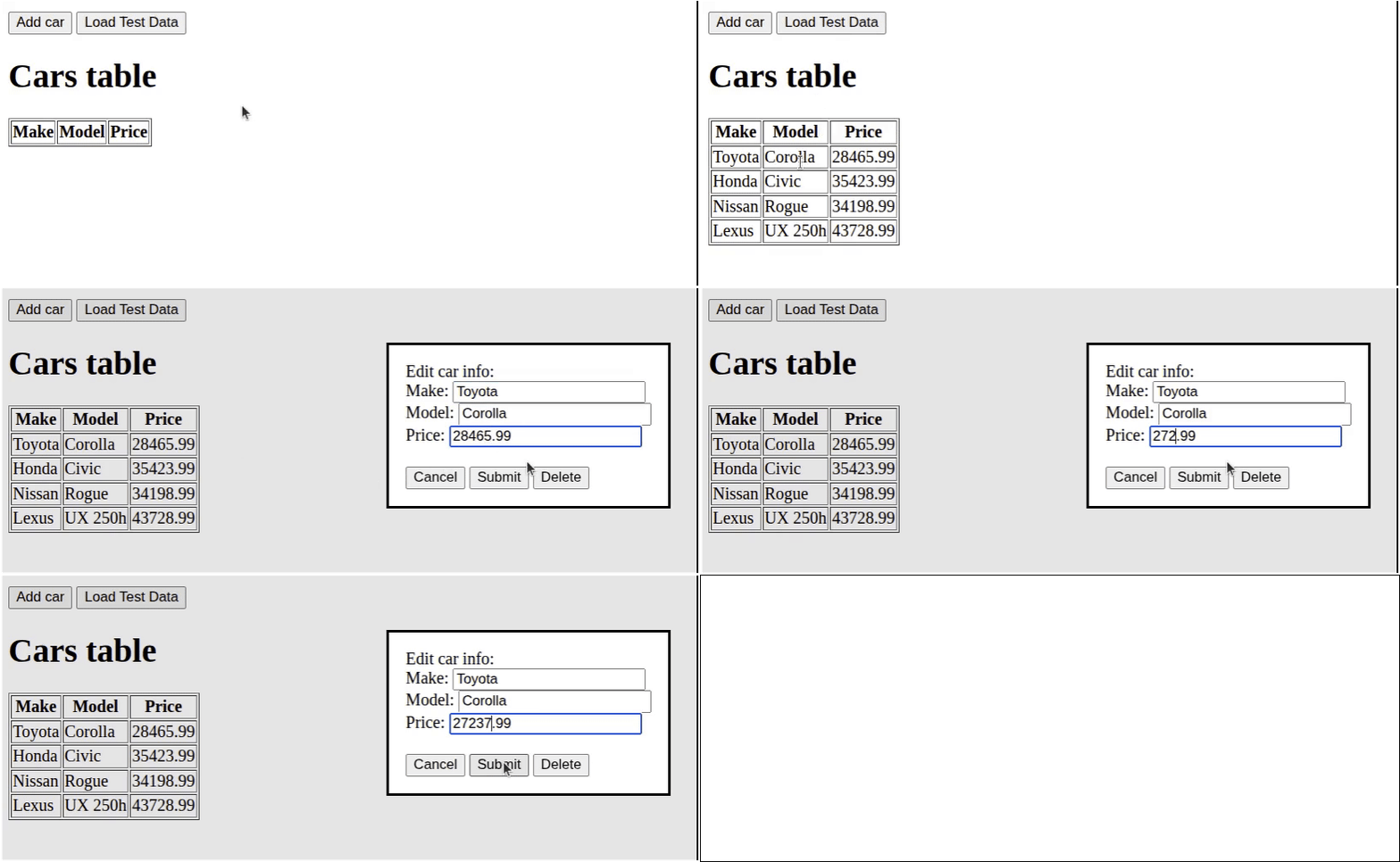
Click on Reload gif to replay animation.
As you can see, the price of the Toyota Corolla was updated. That change is not saved when you reload the application, as we are not storing the data in a persistent way yet. Storing the data in a persistent manner is a topic that we will start discussing in the next lesson: Enhancing the User Experience using localStorage
Making the Cancel and Delete buttons work
Let’s finish off the application by making the Cancel and Delete buttons on the edit dialog box functional. Here are the things that we need to do:
-
Get references to the Cancel and Delete buttons on the edit dialog box and store these references in the private variables section of the factory function.
-
Assign an event handler that handles the event of a user hitting the Cancel button. This can be done with a simple anonymous function.
-
Assign an event handler that handles the event of a user hitting the Delete button. That event handler will be called
handleDelete(). ThehandleDelete()function will use the stored value for car_id and remove the corresponding Car object using array.splice().
Here is the updated version of index.mjs:
import { Car } from "./cars.mjs";

if (document.readyState === "loading") {
  document.addEventListener('DOMContentLoaded', init);
} else {
  init();
}

function createApp() {
  // private values here
  const self = {
    handleOk: handleOk,
    handleSort: handleSort,
    showAddDlg: showAddDlg,
    showEditDlg: showEditDlg,
    handleSubmit: handleSubmit,
    handleDelete: handleDelete,
    handleLoad: handleLoad
  };
  let car_data = [];
  const make_box = document.getElementById("make_box");
  const model_box = document.getElementById("model_box");
  const price_box = document.getElementById("price_box");
  const cars_tbody = document.getElementById("cars_tbody");
  const add_dlg = document.getElementById("add_dlg");
  const add_button = document.getElementById("add_button");
  add_button.addEventListener("click", self.showAddDlg);
  const edit_dlg = document.getElementById("edit_dlg");
  const make_edit_box = document.getElementById("make_edit_box");
  const model_edit_box = document.getElementById("model_edit_box");
  const price_edit_box = document.getElementById("price_edit_box");
  const submit_button = document.getElementById("submit_button");
  submit_button.addEventListener("click", self.handleSubmit);
  let car_id;
  const cancel_button = document.getElementById("cancel_button");
  const delete_button = document.getElementById("delete_button");
  cancel_button.addEventListener("click", () => { edit_dlg.close(); });
  delete_button.addEventListener("click", self.handleDelete);

  // =========== API for interacting with user =========
  function handleOk() {
    const make = make_box.value.trim();
    const model = model_box.value.trim();
    const price = Number(price_box.value.trim());
    const car = new Car(make, model, price);
    car_data.push(car);
    console.log('car_data:', car_data);
    updateTable();
    make_box.value = "";
    model_box.value = "";
    price_box.value = "";
    add_dlg.close();
  }

  function handleSort(event) {
    const id = event.target.id;
    const property = id.split("_")[0];
    if (property === "make" || property === "model") {
      sortByString(property);
    } else if (property === "price") {
      sortByNumber(property);
    }
  }

  function showEditDlg(event) {
    const id = event.currentTarget.id;
    const car = car_data[id];
    console.log('car', car);
    car_id = id;
    make_edit_box.value = car.make;
    model_edit_box.value = car.model;
    price_edit_box.value = car.price;
    edit_dlg.showModal();
  }

  function handleSubmit() {
    const make = make_edit_box.value.trim();
    const model = model_edit_box.value.trim();
    const price = Number(price_edit_box.value.trim());
    const car = car_data[car_id];
    car.make = make;
    car.model = model;
    car.price = price;
    updateTable();
    edit_dlg.close();
  }

  function handleDelete() {
    const index = car_id;
    car_data.splice(index,1);
    updateTable();
    edit_dlg.close();
  }

  function showAddDlg() {
    add_dlg.showModal();
  }

  function handleLoad() {
    const c1 = new Car("Toyota", "Corolla", 28465.99);
    const c2 = new Car("Honda", "Civic", 35423.99);
    const c3 = new Car("Nissan", "Rogue", 34198.99);
    const c4 = new Car("Lexus", "UX 250h", 43728.99);
    car_data = [];
    car_data.push(c1);
    car_data.push(c2);
    car_data.push(c3);
    car_data.push(c4);
    updateTable();
  }
  // =========== end of API for interacting with user ==

  // =========== helper functions =============
  function updateTable() {
    const fragment = makeFragment();
    cars_tbody.replaceChildren(fragment);
  }

  function makeFragment() {
    const fragment = document.createDocumentFragment();
    for (let i = 0; i < car_data.length; i++) {
      const car = car_data[i];
      const tr = document.createElement('tr');
      tr.setAttribute("id", i);
      tr.addEventListener("click", (event) => {
        self.showEditDlg(event);
      });
      let td = document.createElement('td');
      let contents = document.createTextNode(car.make);
      td.appendChild(contents);
      tr.appendChild(td);
      td = document.createElement('td');
      contents = document.createTextNode(car.model);
      td.appendChild(contents);
      tr.appendChild(td);
      td = document.createElement('td');
      contents = document.createTextNode(car.price);
      td.appendChild(contents);
      tr.appendChild(td);
      fragment.appendChild(tr);
    }
    return fragment;
  }

  function sortByString(property) {
    const header = document.getElementById(property + "_heading");
    const sort_dir = header.getAttribute("aria-sort");
    if (sort_dir === "none" || sort_dir === "descending") {
      car_data.sort((a,b) => a[property].localeCompare(b[property]));
      header.setAttribute("aria-sort", "ascending");
    } else if (sort_dir === "ascending") {
      car_data.sort((a,b) => b[property].localeCompare(a[property]));
      header.setAttribute("aria-sort", "descending");
    }
    resetHeadings(property);
    updateTable();
  }

  function sortByNumber(property) {
    const header = document.getElementById(property + "_heading");
    const sort_dir = header.getAttribute("aria-sort");
    if (sort_dir === "none" || sort_dir === "descending") {
      car_data.sort((a,b) => a[property] - b[property]);
      header.setAttribute("aria-sort", "ascending");
    } else if (sort_dir === "ascending") {
      car_data.sort((a,b) => b[property] - a[property]);
      header.setAttribute("aria-sort", "descending");
    }
    resetHeadings(property);
    updateTable();
  }

  function resetHeadings(property) {
    const id = property + "_heading";
    const headers = document.getElementsByTagName('th');
    for (let header of headers) {
      if (header.id !== id) {
        header.setAttribute("aria-sort", "none");
      }
    }
  }
  // =========== end of helper functions ======

  return self;
}

function init() {
  console.log('init called');
  const myApp = createApp();
  const ok_button = document.getElementById("ok_button");
  ok_button.addEventListener("click", myApp.handleOk);
  const load_data_button = document.getElementById("load_data_button");
  load_data_button.addEventListener("click", myApp.handleLoad);
  const table_headers = document.getElementsByTagName('th');
  for (let header of table_headers) {
    header.addEventListener("click", () => {
      myApp.handleSort(event);
    });
  }
}
The new lines are 17, 35-38 and 88-93. Line 17 modifies the definition of self to include handleDelete() as one of the returned API functions. Lines 35 and 36 get references to the Cancel and Delete buttons on the edit dialog box, respectively. line 37 assigns a click handler to the Cancel button. This will just be an anonymous function that calls edit_dlg.close() to close the edit dialog box. line 38 assigns self.handleDelete() to be the click handler for the Delete button.
Lines 88-93 define the handleDelete() helper function. Line 89 stores the value of car_id as index. Line 90 calls the array’s splice() method to remove one item starting from the position designated by index. Line 91 calls updateTable() to show that the Car object has been deleted. Line 92 then closes the edit dialog box.
Here is an animated gif that first shows clicking on a row and hitting the Cancel button. Nothing in the table will change. Then, the user will click on the Honda Civic row, and hit Delete. You will see that this Car object will have been removed. Again, these changes are not persistent, as we are not storing the data in a persistent manner. Storing the data in a persistent manner is a topic that we will start discussing in the next lesson: Enhancing the User Experience using localStorage
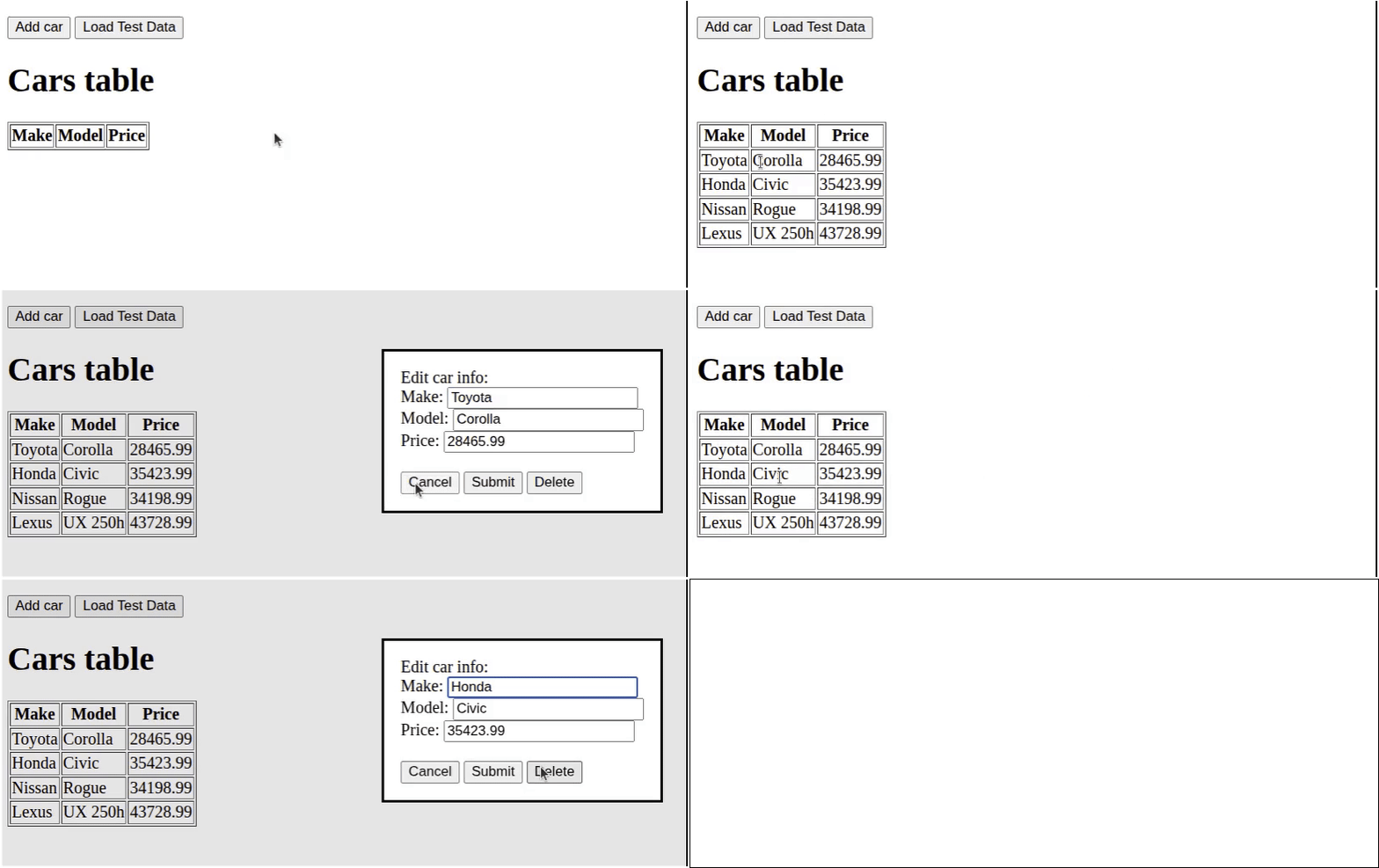
Click on Reload gif to replay animation.
This concludes this lesson.
Summary
-
This is the first of several lessons where we gather input from the user and display the input data in a HTML table. Subsequent lessons will build upon the ideas from this lesson.
-
It is important to first decide what kind of data we want to use this application for. This allows designing the user interface for a prototype. In addition, this allows the creation of a class to hold this type of data that is defined inside a module.
-
This is another example of using a factory function to avoid the use of global variables and make it easier to design the handler functions and helper functions needed to process the data.
-
This application used a temporary load data feature. This is a useful technique that prevents us from having to enter the data one record at a time just to test out the application as we develop it. This is important for an application that does not store the data in a persistent manner.
-
This application made use of a document <fragment> to help with updating the HTML table. This is a useful concept, as it does not require having the clear the children from the existing <tbody> before updating the table’s contents.
-
This application used <dialog> elements to make for a cleaner user interface.
-
This application demonstrated some simple data editing capabilities that also included the ability to delete data.
-
This application made use of ARIA (Accessible Rich Internet Applications) attributes. Those are important to use if you want your web content to be accessible to users with disabilities. That is a big topic, and is outside the scope of these lessons.
-
This application does not store the data in a persistent manner. This will be a topic that we start dealing with in the next lesson Enhancing the User Experience using localStorage